A tour of the property page
The page for one building, top to bottom — what each card is for, what your plan shows, and how every count opens its records.
The property page is BlockLot's report on one tax lot: everything the public record says about the building, read in one place and in a fixed order. You reach it from a search result, from a link on any other page, or by typing an address into the search box at the top of every page.
The header
The first card names the property. The large line is the address; for a condominium apartment the apartment follows it. Under it:
- The borough and ZIP code, in bold. Click it to open the page for the whole ZIP.
- Block, Lot and BBL. The BBL is the borough-block-lot number that identifies a tax lot — the ten-digit key City records use. Click the block number to open the block page.
- The building class, as a short code such as a letter and a digit, followed by the number of units and the year built. Click the code for what it means.
On the right are the building's distress score (click it for the breakdown, explained in Distress signals and liens), the pulled date (when BlockLot's copy of the tax-lot record was last updated) and the page's buttons:
- Download PDF saves the report as a PDF. If your plan does not include it you see PDF report — see plans instead. See The PDF report.
- Watch follows the building for what you choose — sales, permits, violations, leases and more — and e-mails you when a reported lease expiry comes within 12, 6 or 3 months. Once set it reads Watching ✓; if your plan's watches are all in use it reads Watches full. See Watching a building.
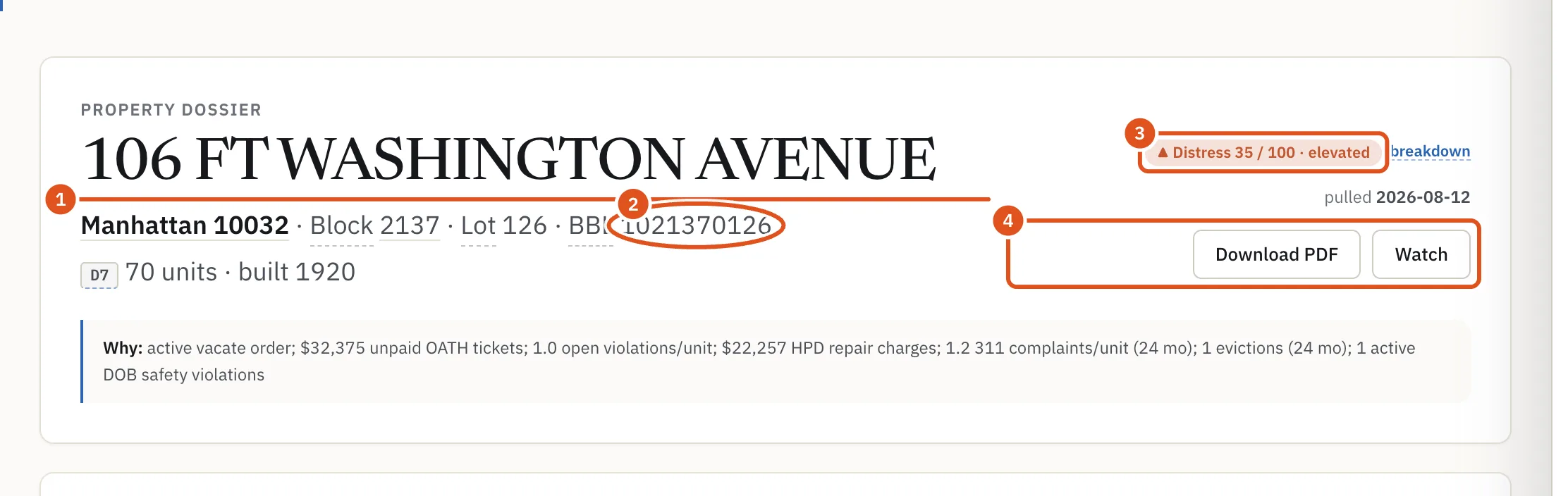
- The address
- The BBL
- Distress score
- PDF and Watch
The cards, in order
Each card has its own article. In reading order:
- Location — the building on a map with its lot lines, plus links to Google Maps and Street View. Location and lot.
- Owner's portfolio — the other buildings the same owner holds, when BlockLot finds any. Portfolio and connected buildings.
- Connected buildings — buildings linked to this owner through a shared registered office, an HPD registration or a shared deed mailing address. Same article.
- Comparable sales — recent sales of similar buildings nearby, and an implied value where the sales support one. Comparable sales.
- Owner and Contacts — who owns the building according to the tax roll and the latest deed, and how to reach them. Owner and contacts.
- Value & tax — the City's market and assessed values and the annual property tax. Value and tax.
- Lot & building and Zoning & use — size, floors, units, zoning and unused buildable area. Location and lot.
- Sales history — every recorded sale of the building, newest first. History.
- Businesses on record, Storefront history and Lease expirations — the businesses on record at the address and the leases reported there. Businesses and leases.
- On this block — a few figures about the block, with a link to its page. The neighborhood.
- Compliance & distress signals and Federal tax liens — open complaints, unpaid tickets and charges, and IRS liens linked to the owners. Distress signals and liens.
- Changes and Timeline — what BlockLot has seen change lately, and the building's whole history on one axis. History.
- Records — every record set about the building, grouped, each with its count. Records.
- Neighborhood — the nearest subway, flood maps, precinct crime, mortgage lending in the census tract and zoned schools. The neighborhood.
Most cards appear on every building and say so when they have nothing to show. A few — the portfolio, comparable sales, the business and lease cards, Changes — appear only when there is something to put in them.
What you see depends on your account
- Not signed in, you see the public tax-lot facts — address, class, size, units, floors, zoning, assessed value and the map. A box at the top reads The full report comes with a plan. The other cards are there, but their values are hidden and their counts do not open.
- A free account shows the same public record, under Your free account shows the public record.
- A plan opens the full report. Sections your plan does not include carry a single line, such as Owner names are not in your plan. with a link, See the plans that include them. These lines appear under the Owner, Contacts and Connected buildings cards. Plans and billing explains the differences; prices are on the pricing page.
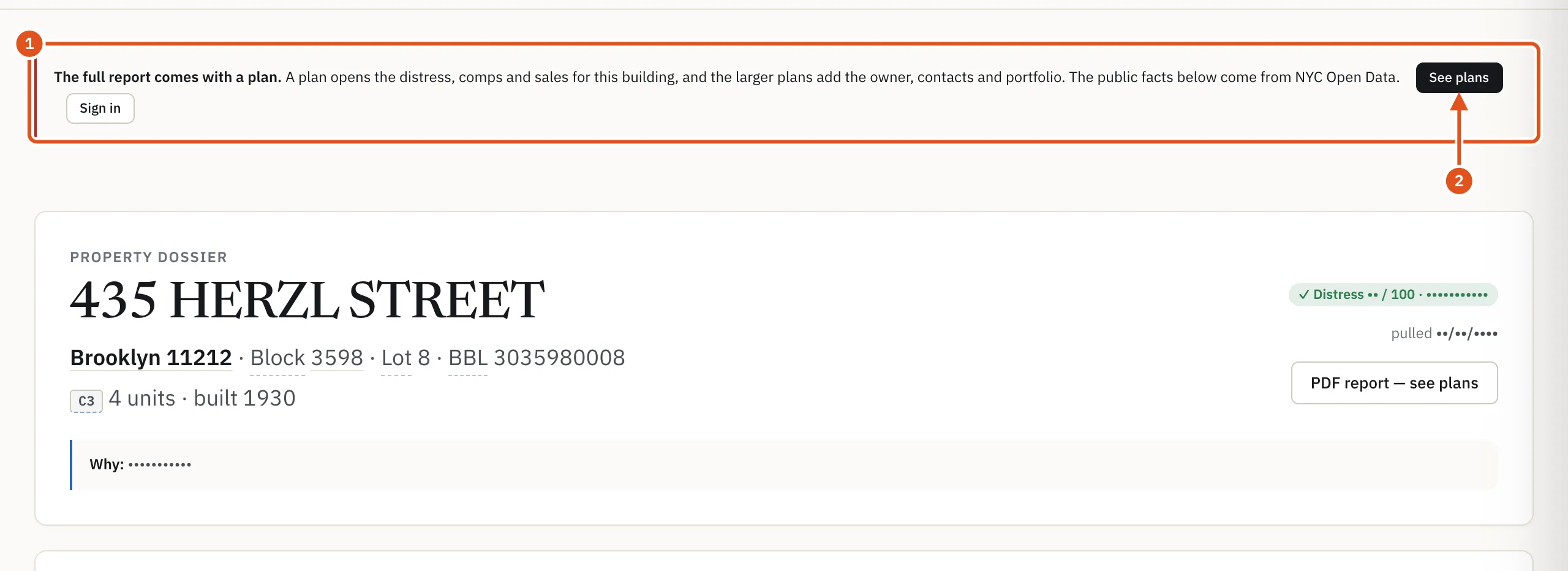
- What a plan adds
- See the plans
Your monthly allowance
On a plan, opening a property page uses one report from your monthly allowance. The counter in the header shows how many you have used and when it resets. Opening the same building again in the same period is free, and so are its drawers and its PDF. When the allowance is used up, pages still open but with their details hidden, and a box says when it resets. Your account shows your usage.
Every count opens its records
Counts on the page are buttons. Click one and a drawer slides in from the side with the rows behind it — each violation, permit, deed or complaint, with its dates and a link to the City's own record where there is one. Underlined labels and codes work the same way: click BBL, Tax class or a zoning code to read what it means. Close the drawer by clicking outside it or pressing Esc.
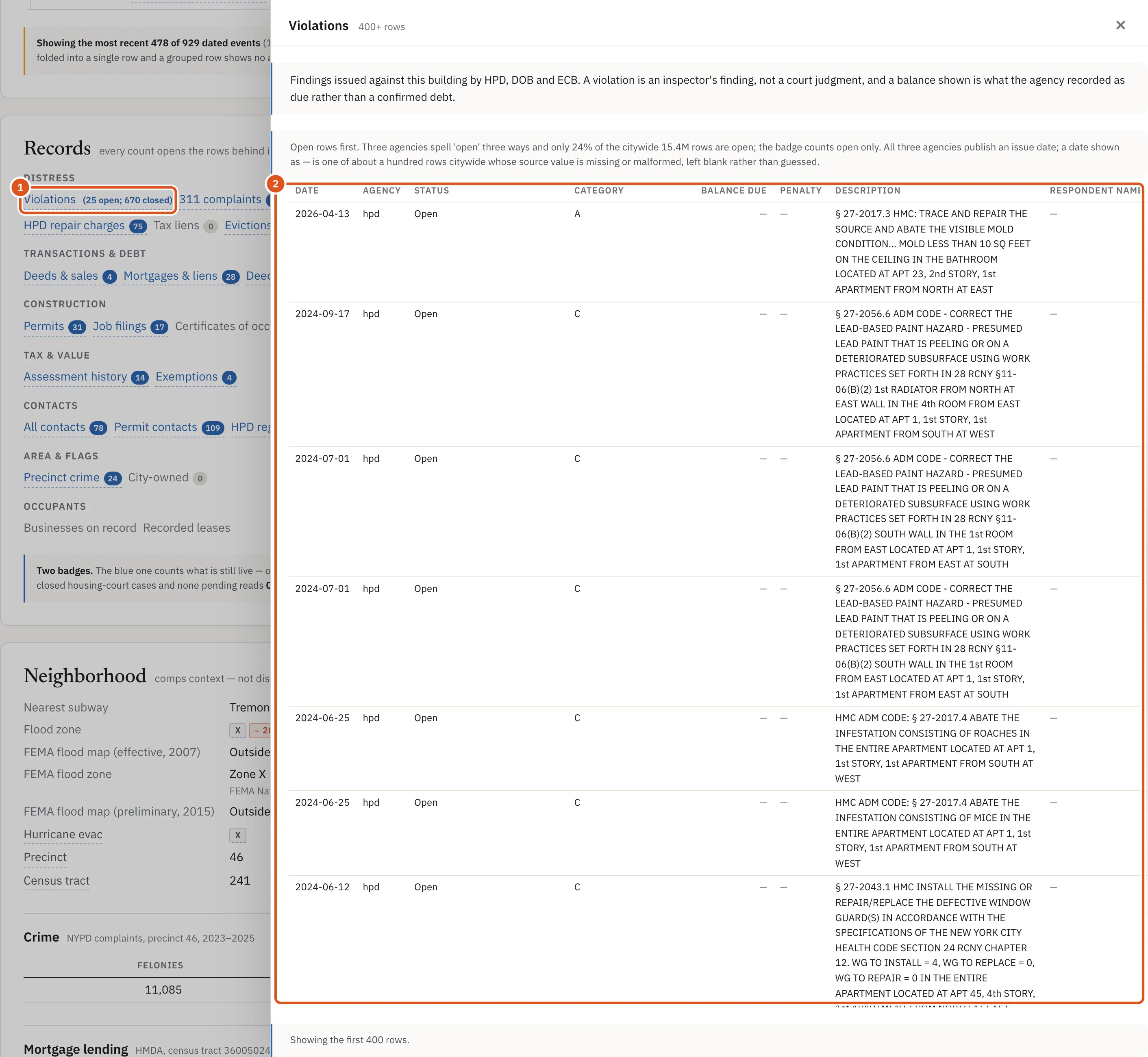
- Click a count
- The rows behind it