Watching a building or an area
Follow a building, a block, a ZIP code, a neighbourhood or a saved search, get one e-mail a day at most when something new is recorded, and see what happened there in any timeframe.
A watch follows a building for you. When BlockLot records something new there — a sale, a permit, a violation, a complaint, a court case, a lease coming due — it goes into your Building Watch e-mail, at most one a day. Each watch also has its own page, showing everything that happened there in any timeframe.
Watches come with the paid plans. Your plan sets how many buildings and how many areas you can watch.
Start a watch
- Open the building's page.
- Press Watch, at the top of the page beside Download PDF.
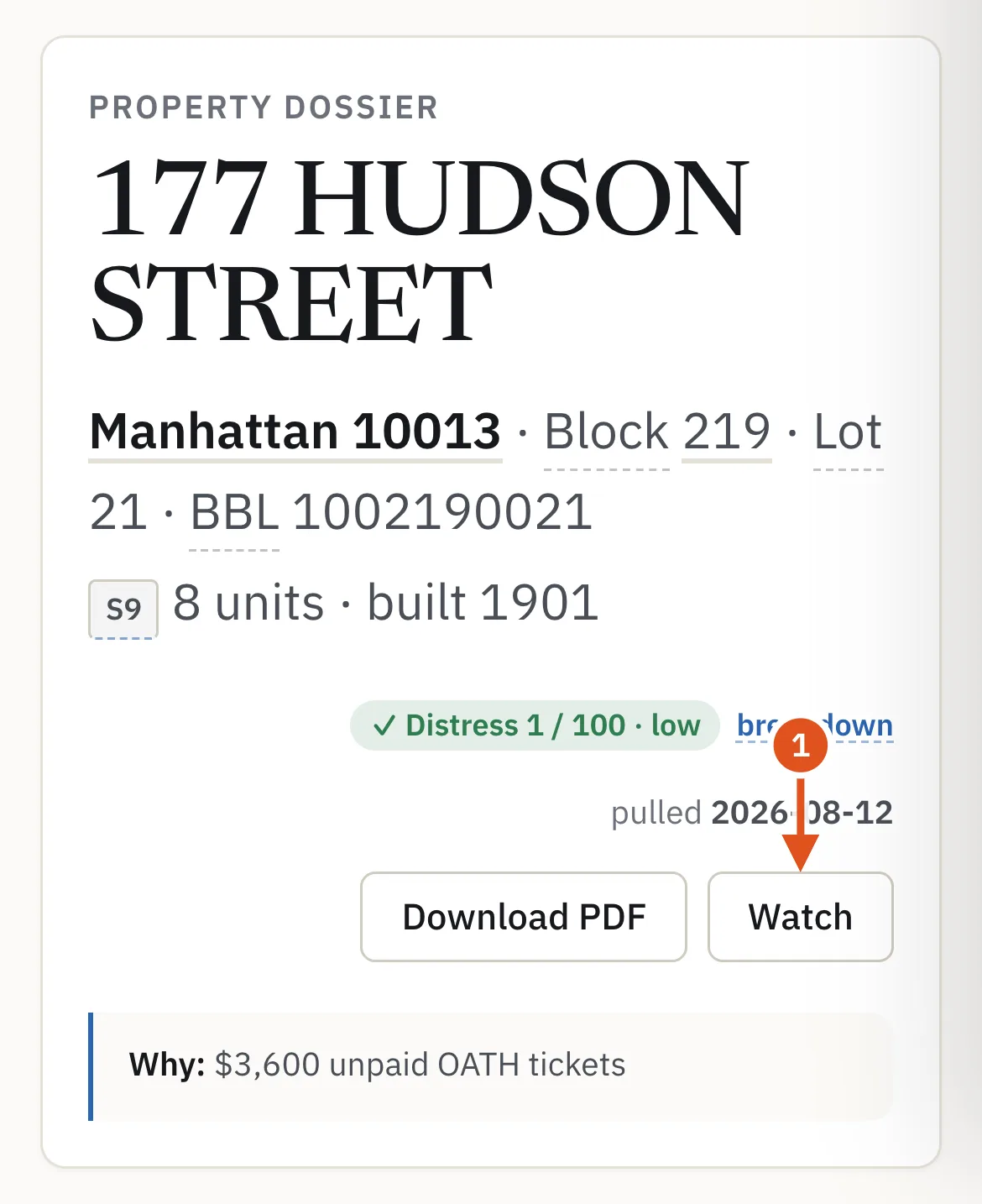
- Start a watch here
Once you watch a building, the button reads Watching ✓ and opens the watch. When all your building watches are in use, it reads Watches full.
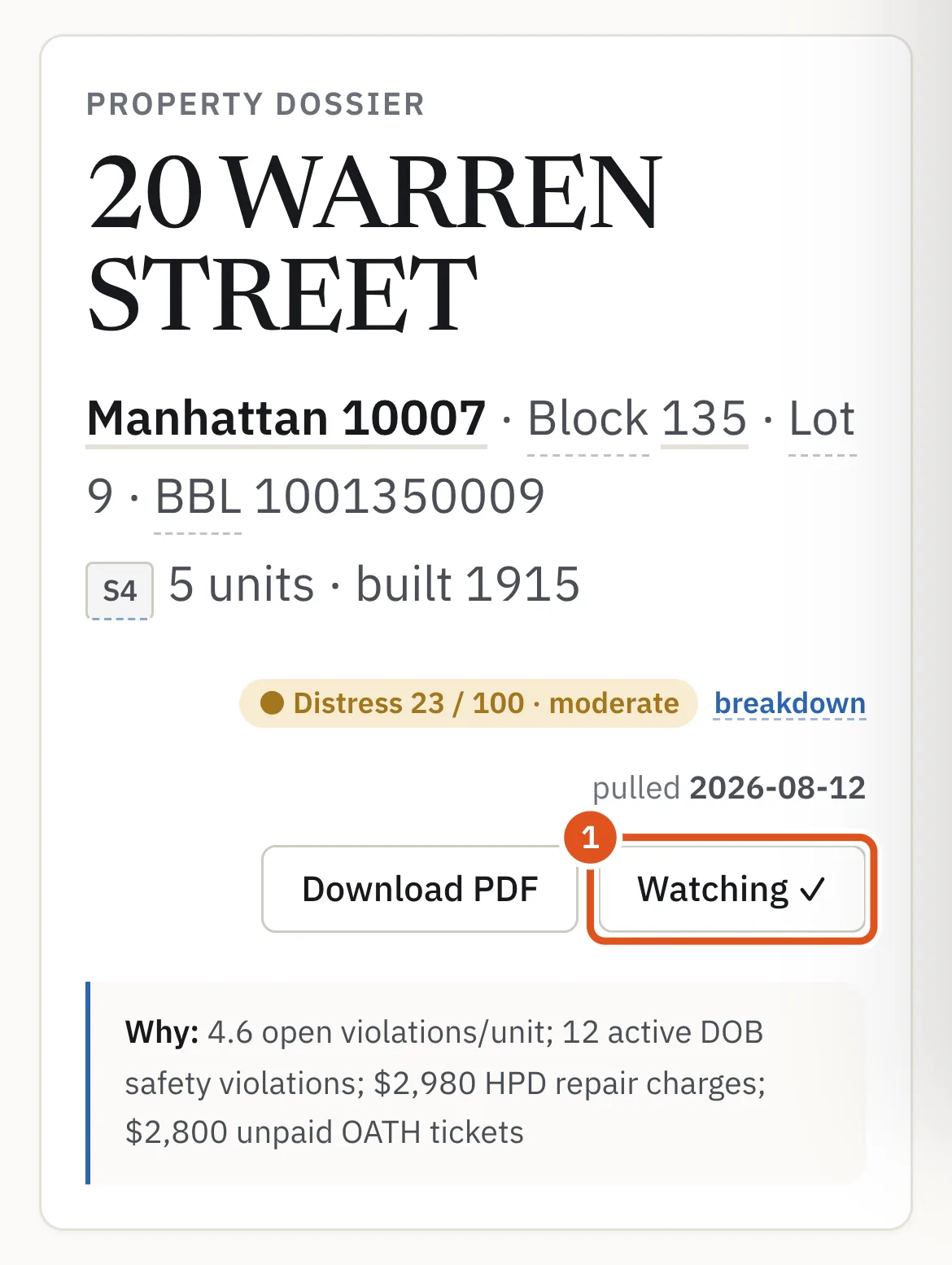
- Opens your watch
A condominium unit is watched as the whole building, with all its units.
Watch an area
A block, a census tract, a neighbourhood or a ZIP code can be watched the same way. Open its page and press Watch this block (or ZIP, neighbourhood, tract). You choose topics and how often, as for a building, and the e-mail lists what is new anywhere in the area. An area watch counts against your plan's area watches.
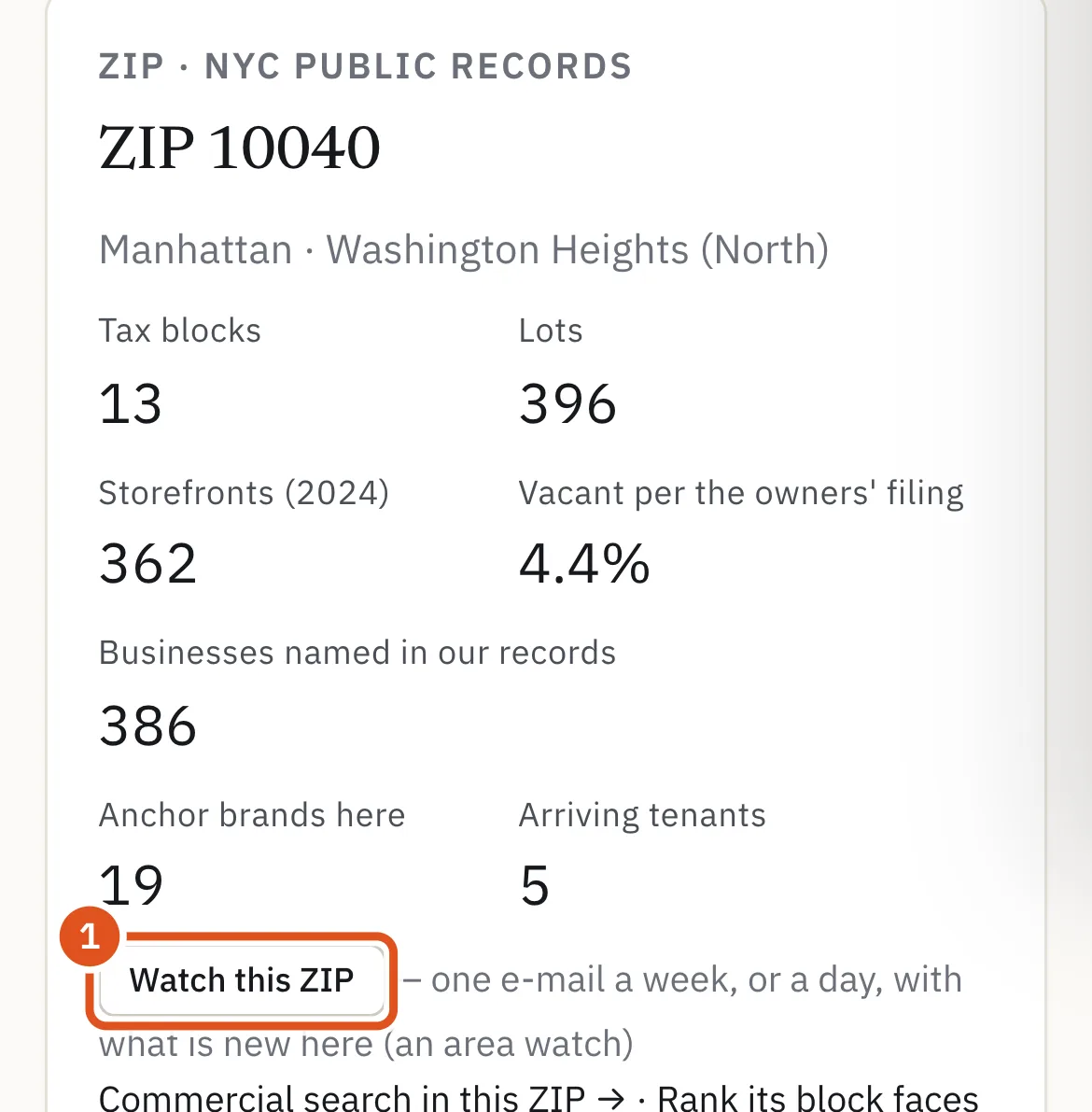
- Watch the whole area
You can also start from Watching: type an address, a ZIP code, a neighbourhood, a block such as "Queens 1860" or a tract such as "tract 463, Queens" into Watch a place, and press Find. A borough or the whole city is too large to watch.

- An address, ZIP, neighbourhood, block or tract
- Find it
Choose what to follow
The form opens with ready-made choices. Pick the one that fits:
- Everything — every topic. The default.
- I own or manage here, I'm farming this area, I'm investing / developing, I live here — the topics that matter for that job.
- Customise — only the topics you tick.

- Ready-made choices
To see every topic, open Every topic, grouped, with how often each happened here in the last 90 days. Each topic shows how often it happened at this building — a count, or a rate such as "about 2 a month" — so you know what to expect before you save. Ticking a box switches you to Customise.

- How often it happened here
- Seldom happens anywhere
Last, choose Daily or Weekly, and press Watch. A weekly watch goes into Monday's e-mail.
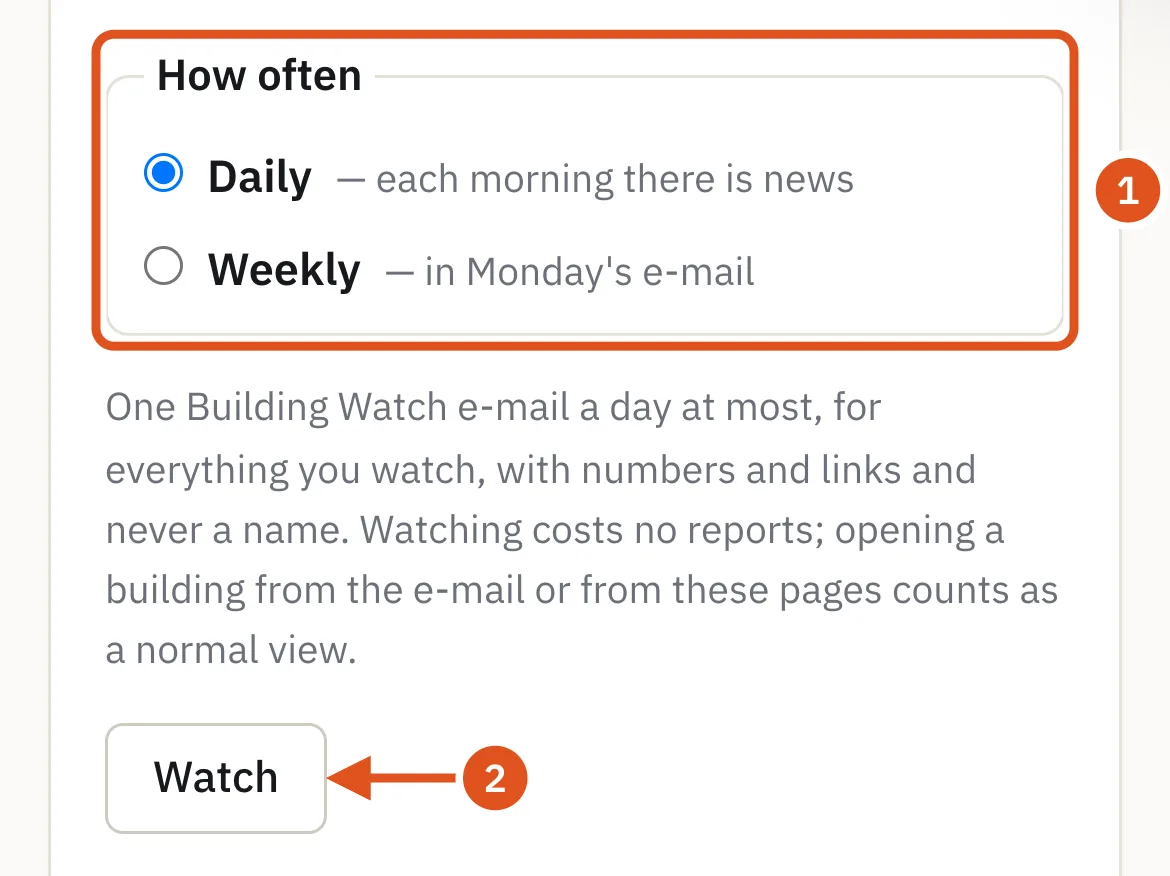
- How often
- Save the watch
Watching costs no reports.
The Building Watch e-mail
You get one e-mail a day at most, for everything you watch. Nothing new, no e-mail.
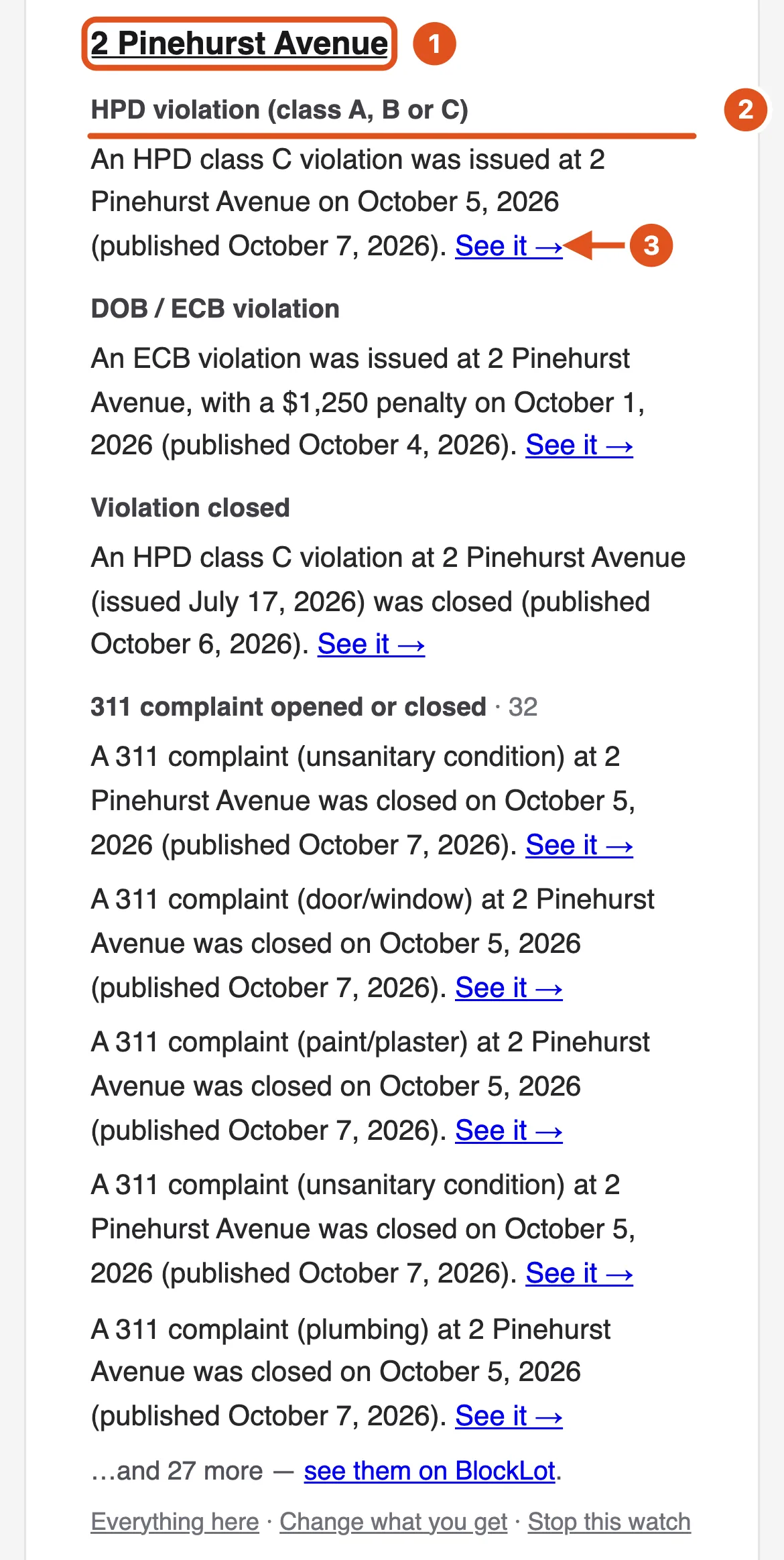
- Each watch has its own section, and each topic its own heading.
- Each line is one record: what happened, where, and the city's date.
- A line never names a person.
- A busy topic shows five lines, then …and N more, linked to the watch's page.
- One watch
- One topic
- Opens the record
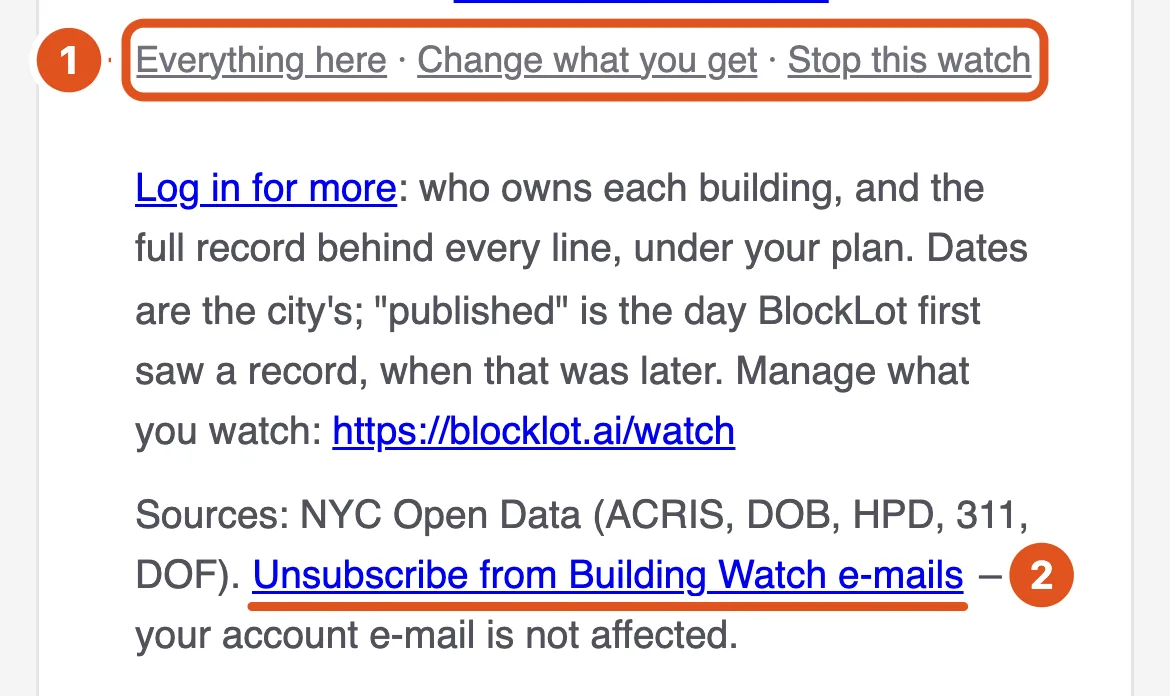
At the foot of each section: Everything here opens the watch's page, Change what you get opens its form, and Stop this watch opens Watching, where you can pause or remove it. At the foot of the e-mail, Unsubscribe from Building Watch e-mails stops all of them at once.
- Manage this watch
- Stop all watch e-mails
Watch a search
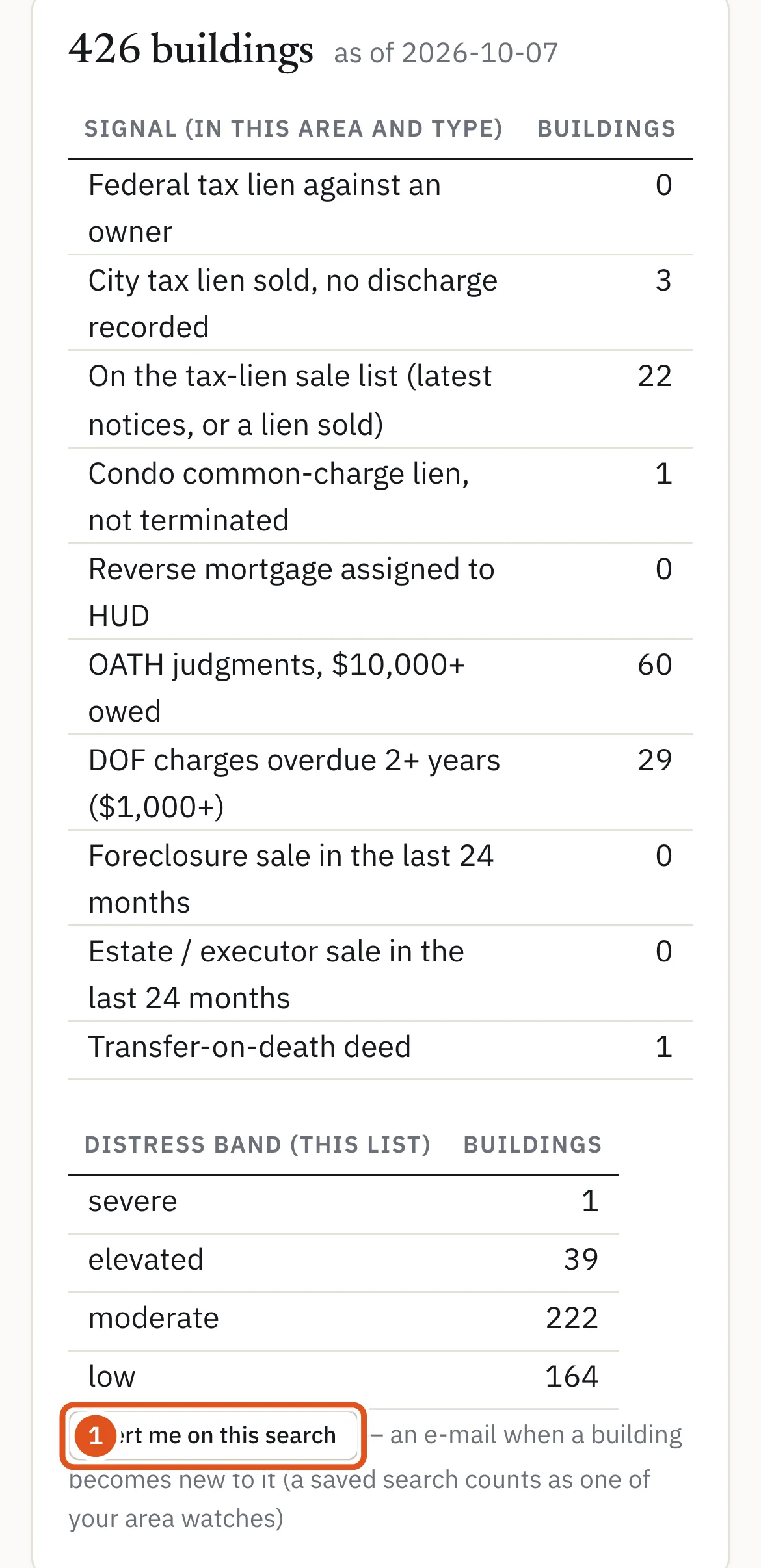
You can also watch a list. On Distressed buildings, narrow the search — a borough or ZIP, a signal, a band or a building type — then press Alert me on this search. You are e-mailed when a building becomes new to the list. Buildings already on it today are not sent.
- Watch this list
A saved search counts as one of your area watches. Its form offers the distress topics only and says how many buildings are on the list today. To watch a list of lease expiries, see Lease alerts.

- On the list today
Your watches
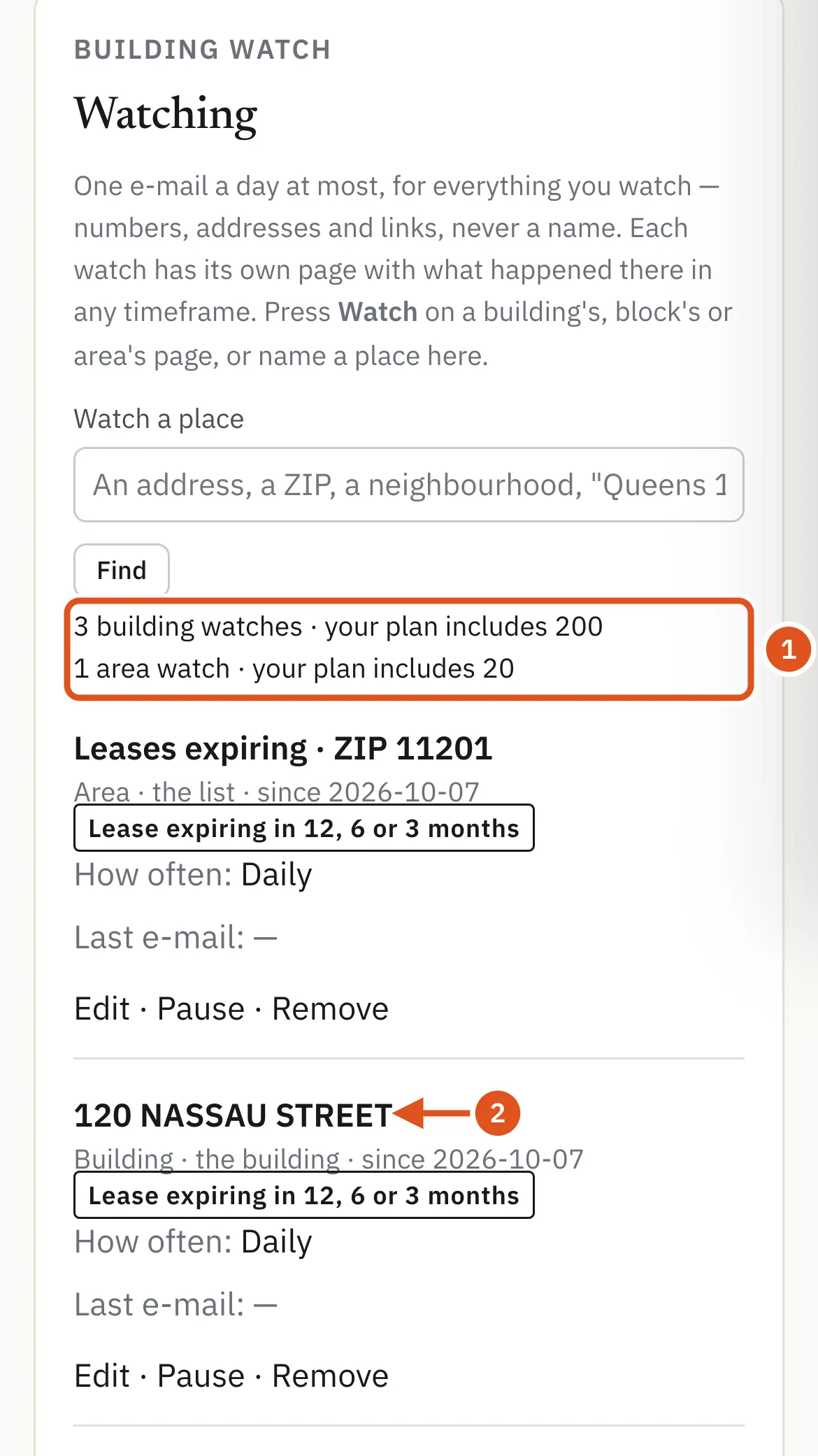
Building/Area Watch, the first item in the Prospecting menu, opens Watching. It lists every watch: what it follows, how often, and when you were last e-mailed. The top says how many building and area watches your plan includes, and how many you use.
- Your plan's watches
- Opens the watch
Each watch has Edit, Pause and Remove.
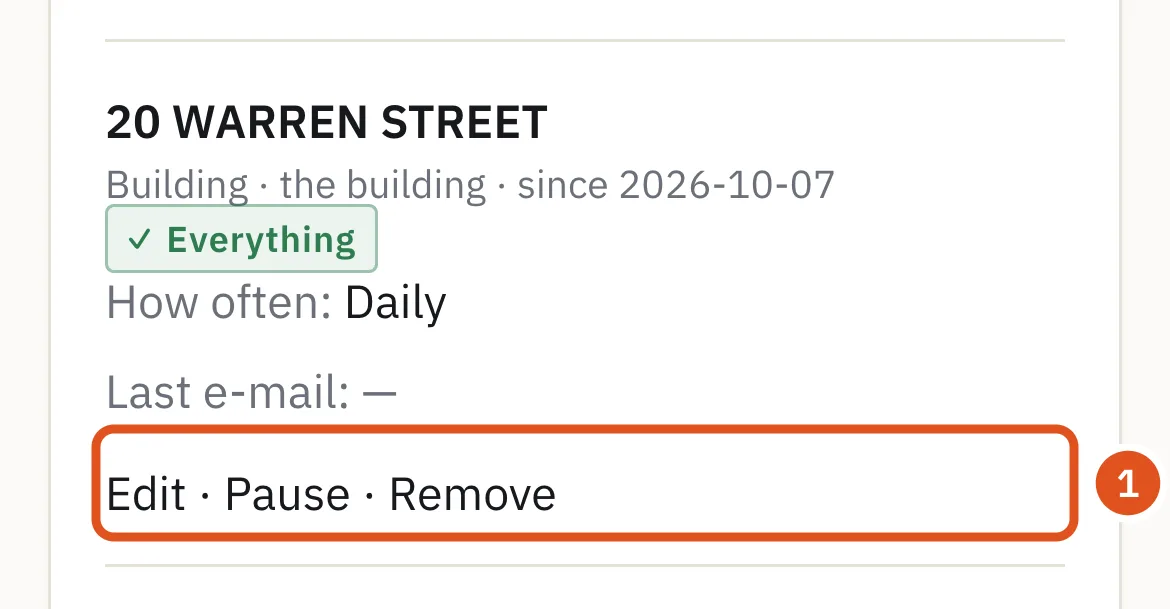
- Change, pause or stop
A paused watch stays on the list and sends nothing until you press Resume. If you move to a plan with fewer watches, nothing is deleted: your oldest watches keep working, and the rest are marked paused — over your plan's limit until there is room.
A watch's page
Open a watch to see what happened there.
The top shows the building, what the watch follows, and links to Change it, see All watches, or Open the building.
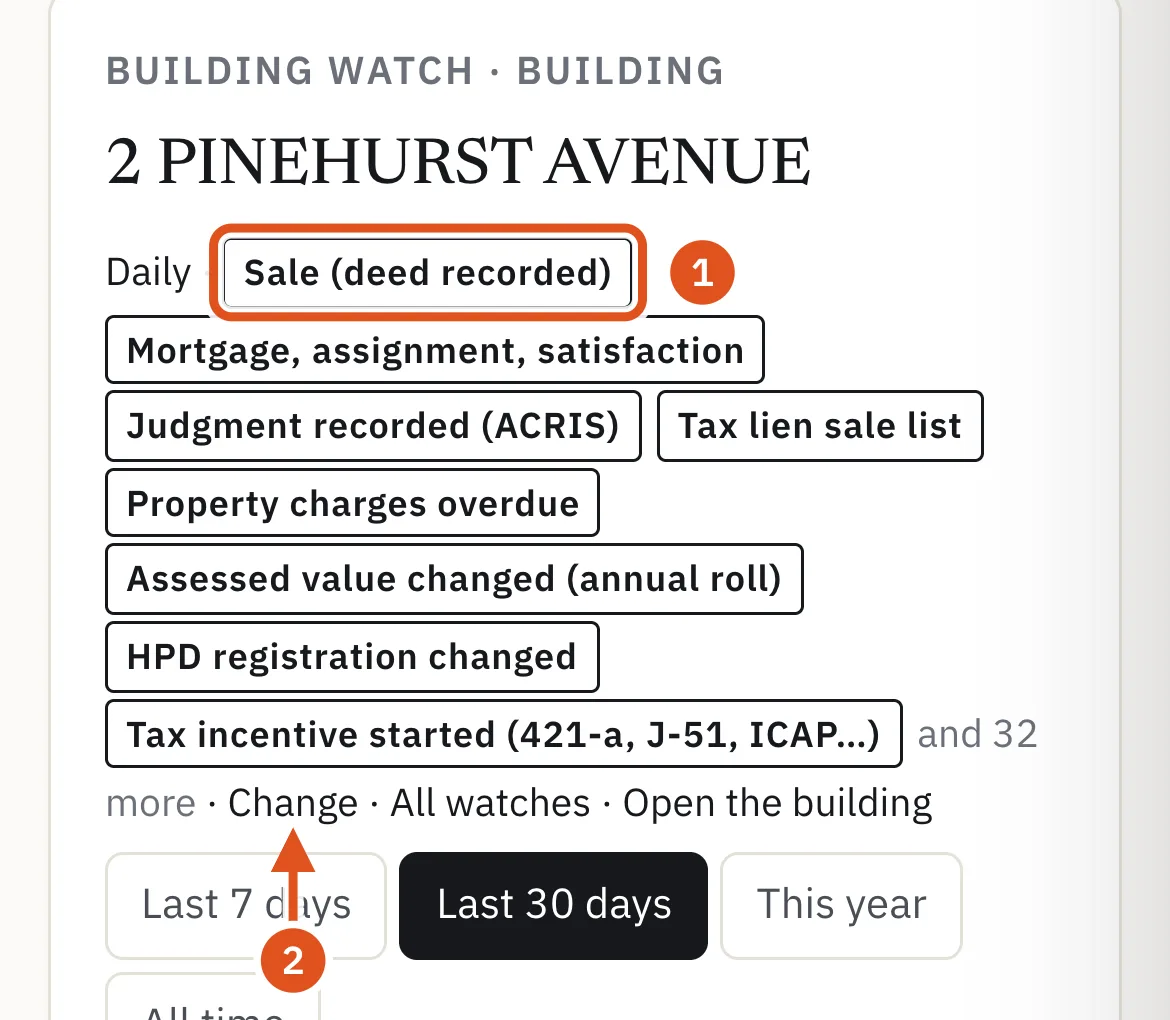
- What it follows
- Change it
Pick a timeframe: the last 7 or 30 days, this year, all time, one year, or your own dates.
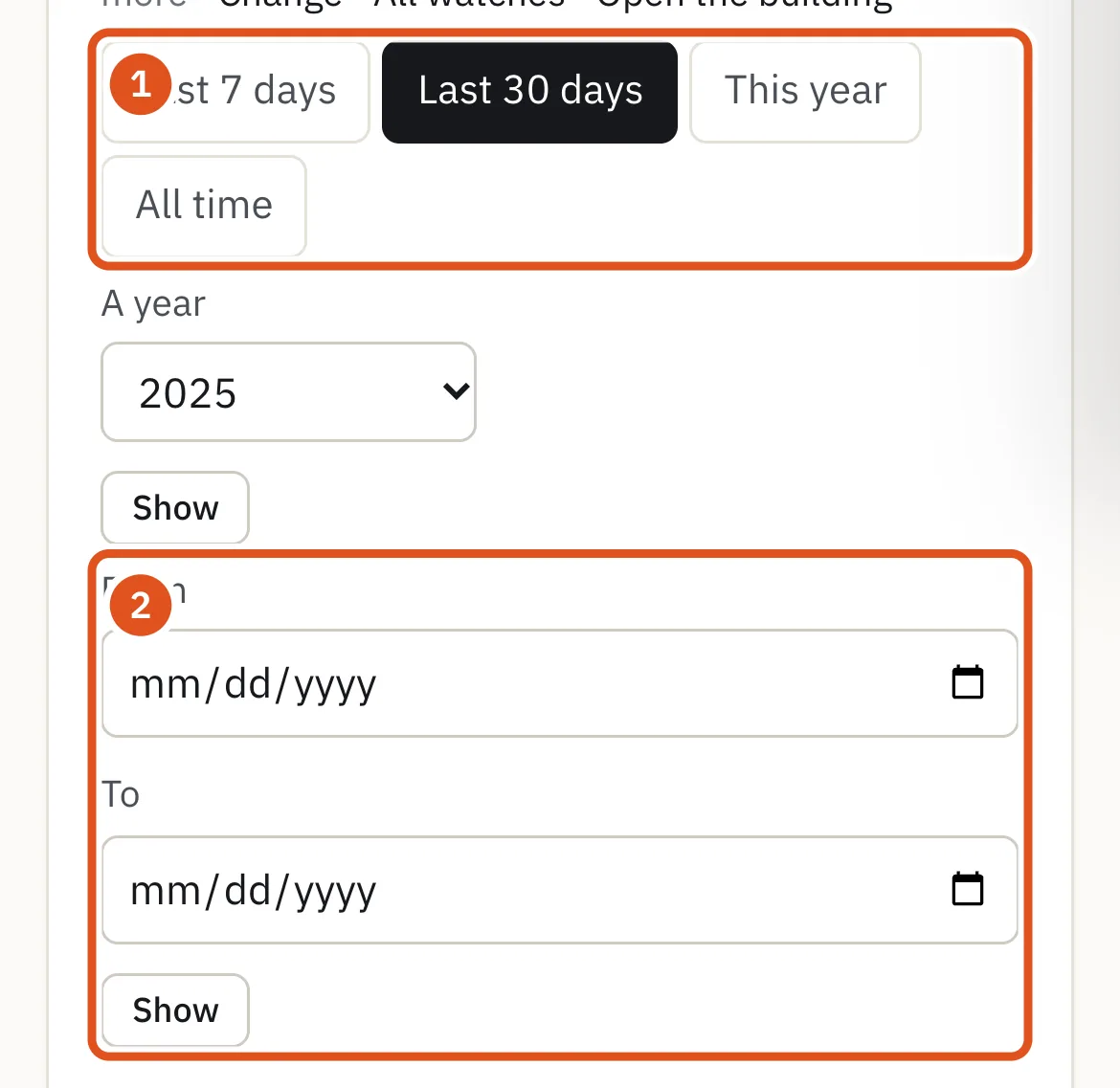
- Quick periods
- A year, or your own dates
The page then counts what happened, topic by topic. Press a topic to see its records, newest first — or, for records that can be open or closed, the open ones first. Topics with nothing in the period are listed below.
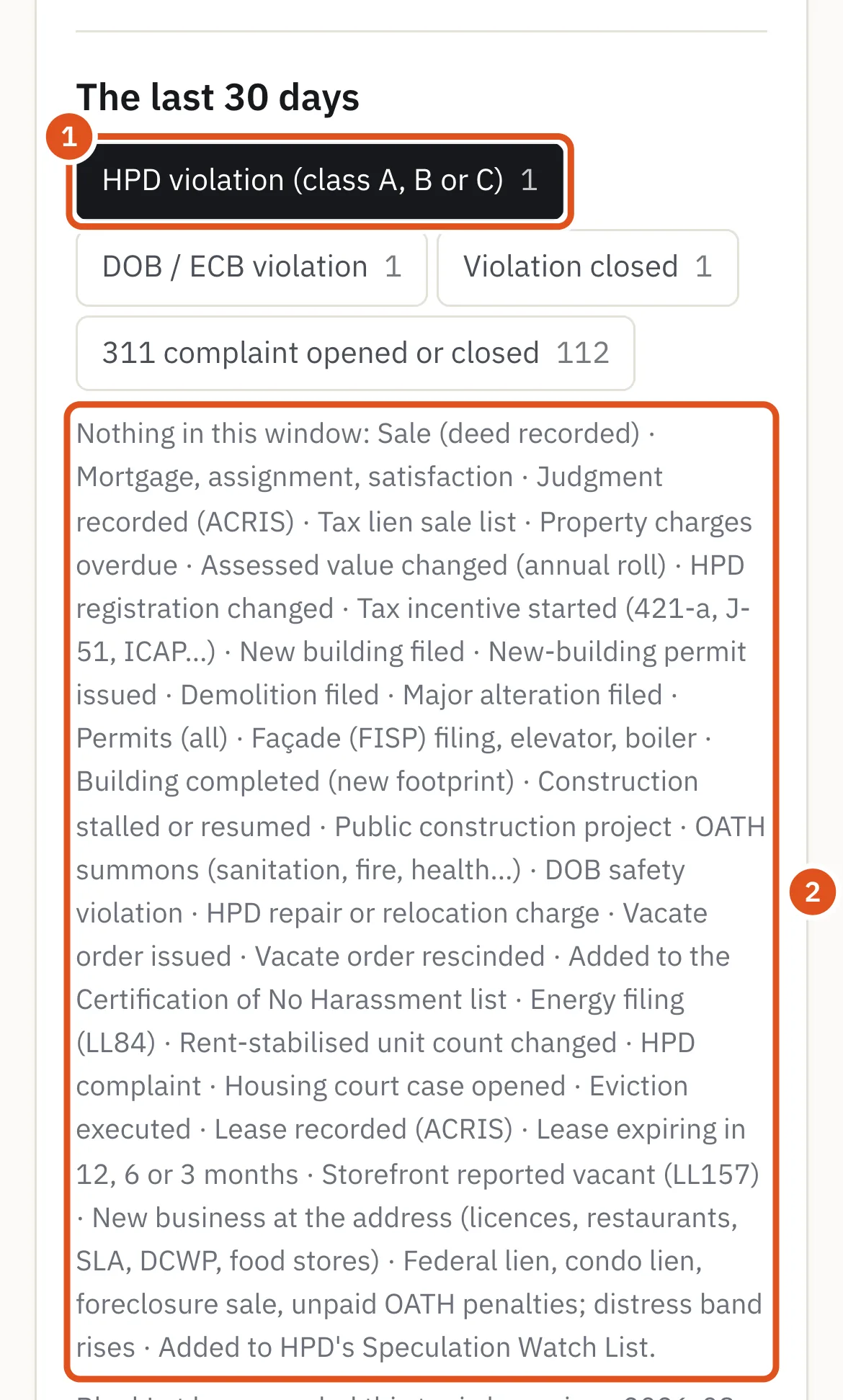
- Its records are below
- Quiet topics
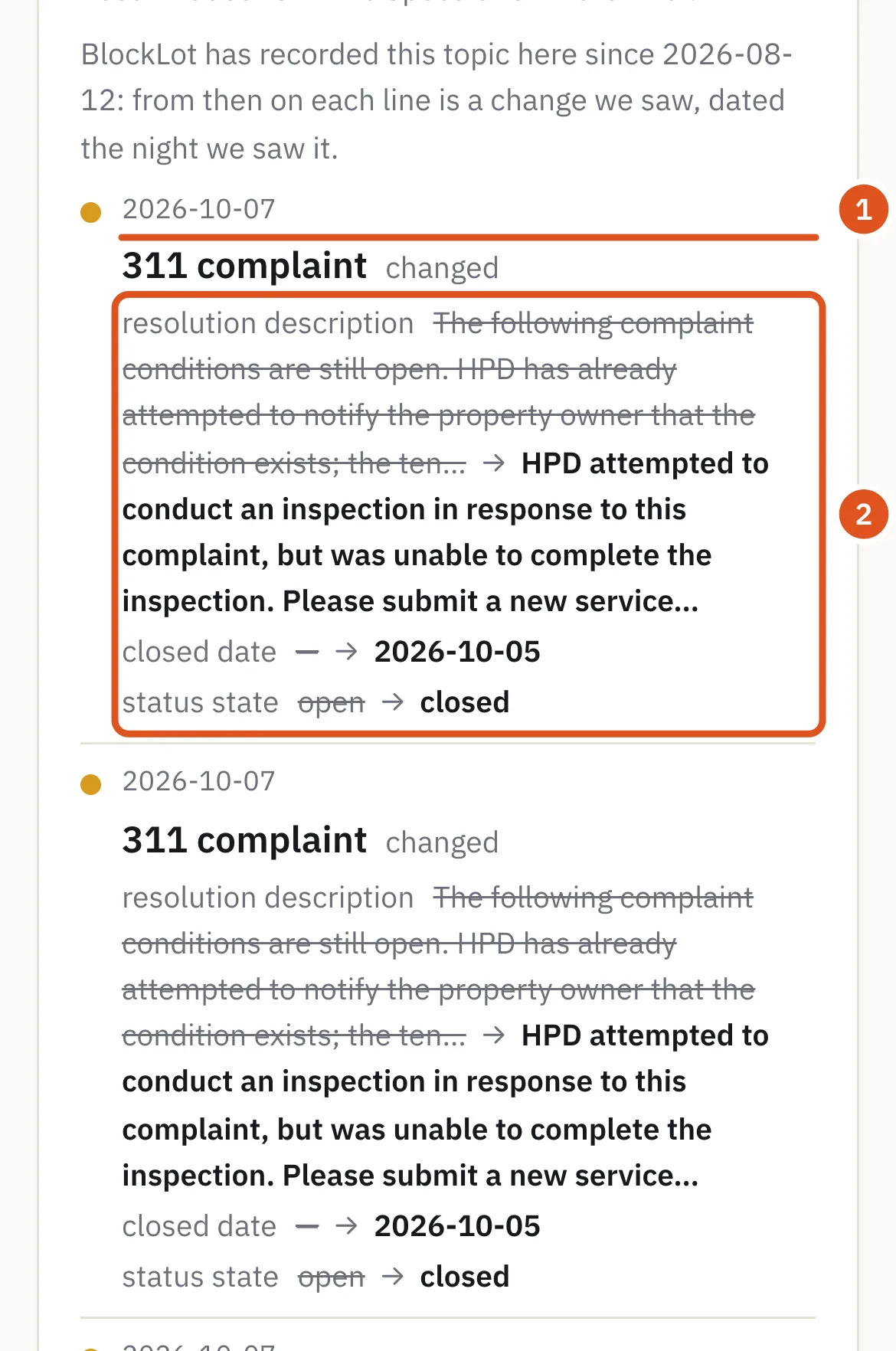
- The night it was seen
- Before → after
From the day BlockLot began recording a topic, each line is a change it saw, dated the night it was seen. Before that day, the page lists the building's own records by their own dates.
Stop or pause alerts
- One building: press Pause or Remove on its row of Watching. Stop this watch in the e-mail takes you there.
- All watch e-mails: use Unsubscribe from Building Watch e-mails at the foot of any of them. Your watches are kept, and account e-mails such as password resets still reach you.
- Turn them back on: open Watching and press Turn alerts back on.

- Resume all e-mails
If an e-mail to you bounced or was reported as spam, alerts are off too, and the page says so. Reply to any BlockLot e-mail and we will look into it; see Corrections and support.