Your account page
Your plan, your usage this period, every report you have opened, promo codes, signed-in devices and your password — all on one page.
Your account page is where you check what your plan includes and how much of it you have used, find a building you looked at last month, and keep your sign-in secure.
Getting there
When you are signed in, click your name in the header. The usage meter in the header, when your plan has one, opens the same page.
Your details and plan
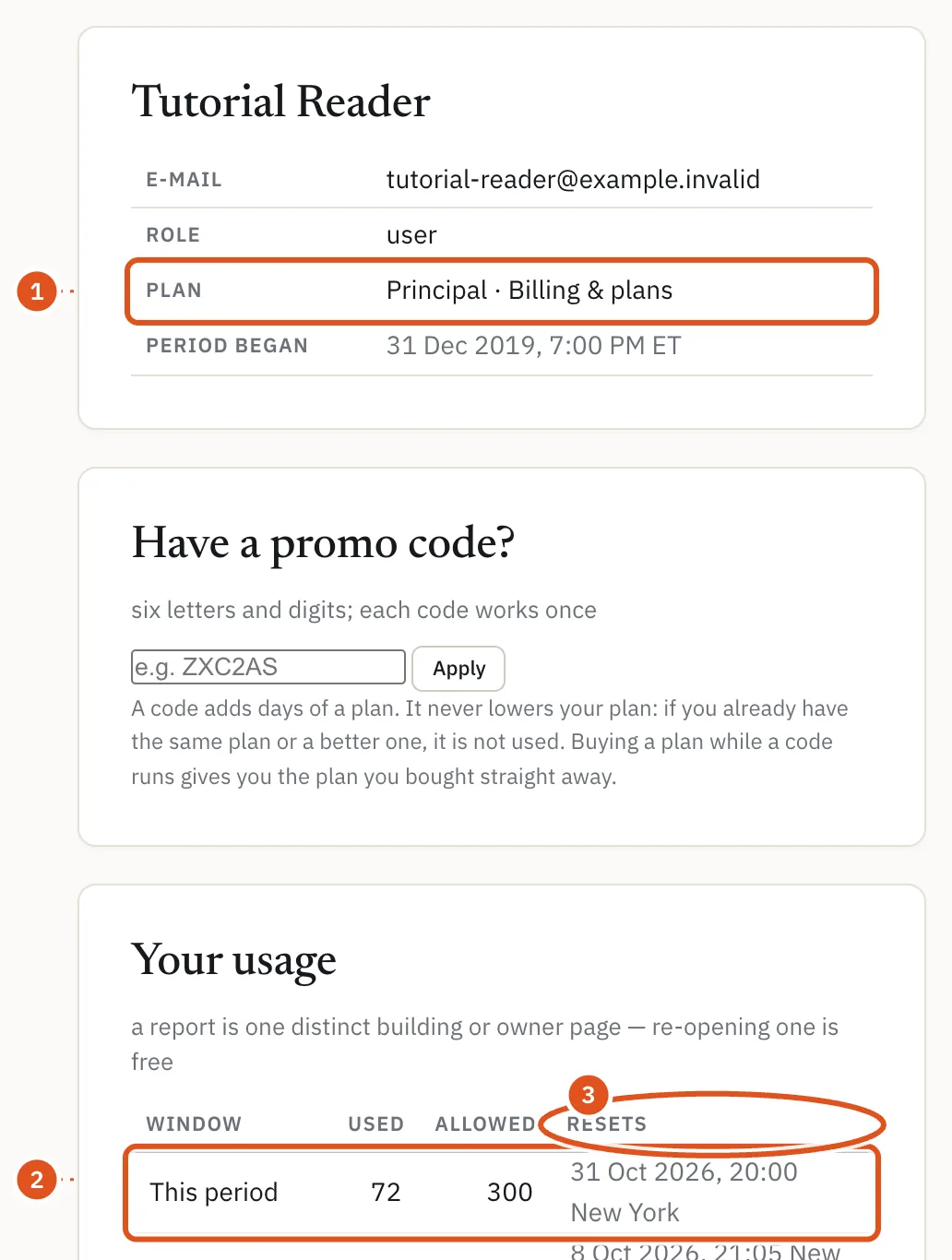
The first card shows your name, E-mail, Company if you gave one, and your Plan, with a link to Billing & plans where you can change it. See Plans and billing.
If a promo code has given you a plan for a while, a Promo line shows which plan, until when, and what your account goes back to afterwards.
Your usage
Your usage shows the reports you have opened, against what your plan allows, in three windows:
- This period — your monthly allowance.
- Last 24 hours and Last 60 minutes — short limits that stop bulk copying.
Each line says when it resets, in New York time. A report is one distinct building, owner, company, business, block or ZIP page, or a prospecting list. Opening the same one again in the same period is free, and so are its drill-downs and its PDF.
The line under the table gives the dates of your current period and any extra reports added to it. On a paid plan, your allowance resets on your billing date.
- Your plan
- Monthly allowance
- When each count resets
Your history
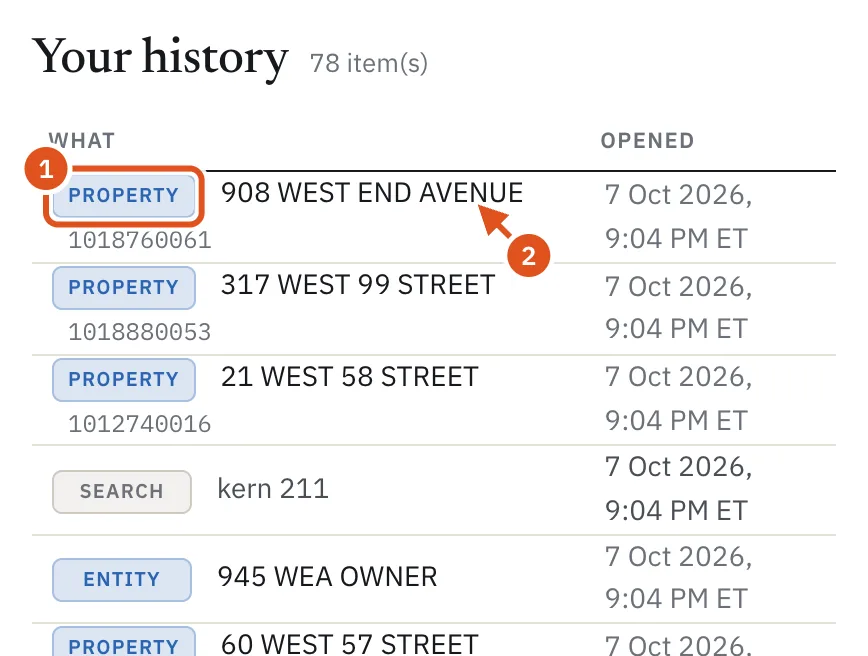
Your history lists everything you have opened, newest first: buildings, owners, companies, business and area pages, prospecting lists and name searches. Each row is a link, and buildings show their address with the BBL beside it. Use Older and Newer to page through.
Re-opening a building, owner or company from here is free for the rest of the period in which you first opened it. A search row runs the search again, which counts like typing it fresh.
The home page shows your ten most recent items, with a link to the full list here.
- What kind of page
- Opens the building
Promo codes
If you have a promo code, enter it under Have a promo code? and click Apply. Codes are six letters and digits, and each works once. A code adds days of a plan to your account:
- it never lowers your plan, so if you already have the same plan or a better one, the code is not used and you can pass it on;
- if you buy a plan while a code is running, the plan you bought starts straight away.
Promo codes do not apply to company accounts, whose plan is the company's. If you pay for your plan by card, write to billing@blocklot.ai and BlockLot will apply the code for you.
Signed-in devices
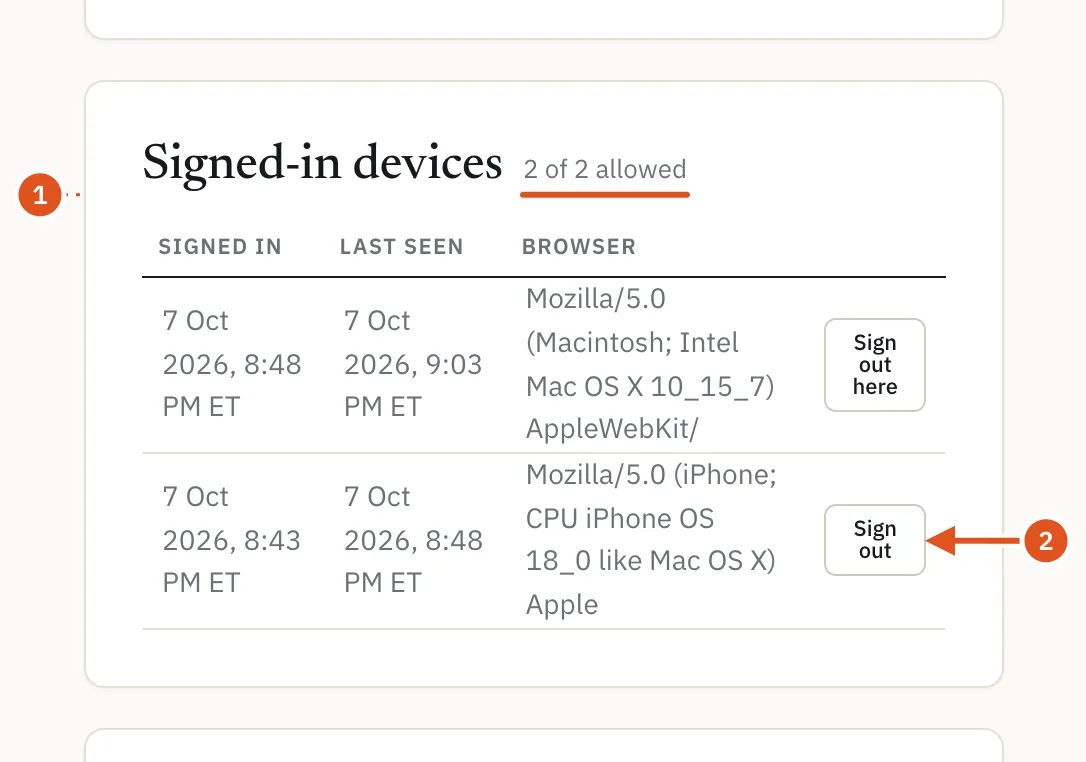
Signed-in devices lists every browser signed in to your account, with when it signed in, when it was last seen and which browser it is, and how many devices your plan allows at once. Click Sign out beside any device you do not recognize, or no longer use, to sign it out. Sign out here signs out the browser you are using.
If signing in on a new device goes over your plan's limit, the device that signed in longest ago is signed out and a note at the top of this page tells you.
- Devices allowed
- Sign that device out
Changing your password
Under Change your password, enter your Current password, then the New password twice, and click Change password. A password needs at least 12 characters and cannot be one of the most common passwords.
Changing your password keeps you signed in here and signs out every other device. Do it if you think someone else knows your password. Forgotten your current password? Sign out and use Forgot password? on the sign-in page, as described in Accounts and plans.