Check a building before you act
A due-diligence pass in one sitting: the lot and zoning, the owner, sales and mortgages, permits, violations, liens, and a PDF to keep.
"Before I list it, lend on it or make an offer: what does the public record say about this building?" This recipe walks the property page from top to bottom so nothing gets skipped, and ends with a PDF you can file or send.
Before you start
You need to be signed in; owner names and the PDF need a plan that includes them (see plans). Opening the building's full report counts against your monthly allowance of reports, and everything in this recipe is on that one page.
1. Make sure it is the right lot
At the top of the page, check the address, the borough and ZIP code, and the Block, Lot and BBL, the borough-block-lot number that identifies a tax lot. Deeds, tax bills and zoning maps are all indexed by block and lot, so this is the number to quote. Check the building class, units and year built on the line below, and the pin on the Location map; Street View opens the street in a new tab. See A tour of the property page.
2. Read the lot and the zoning
The Lot & building card gives what the City's tax-lot file (PLUTO) records: Lot area, Lot dimensions, Building area, Floors, Year built, Units and, where DOF billed for them, rent-stabilized units. Beside the BIN (the Buildings Department's building number), C of O on DOB BIS ↗ opens the official certificates of occupancy.
The Zoning & use card gives the Zoning district, Land use and the floor-area ratios, which Governing FAR applies, and the Air rights: unused buildable floor area, or a flag that the lot looks over-built. Most codes open their meaning when you click them. More in Location and lot.
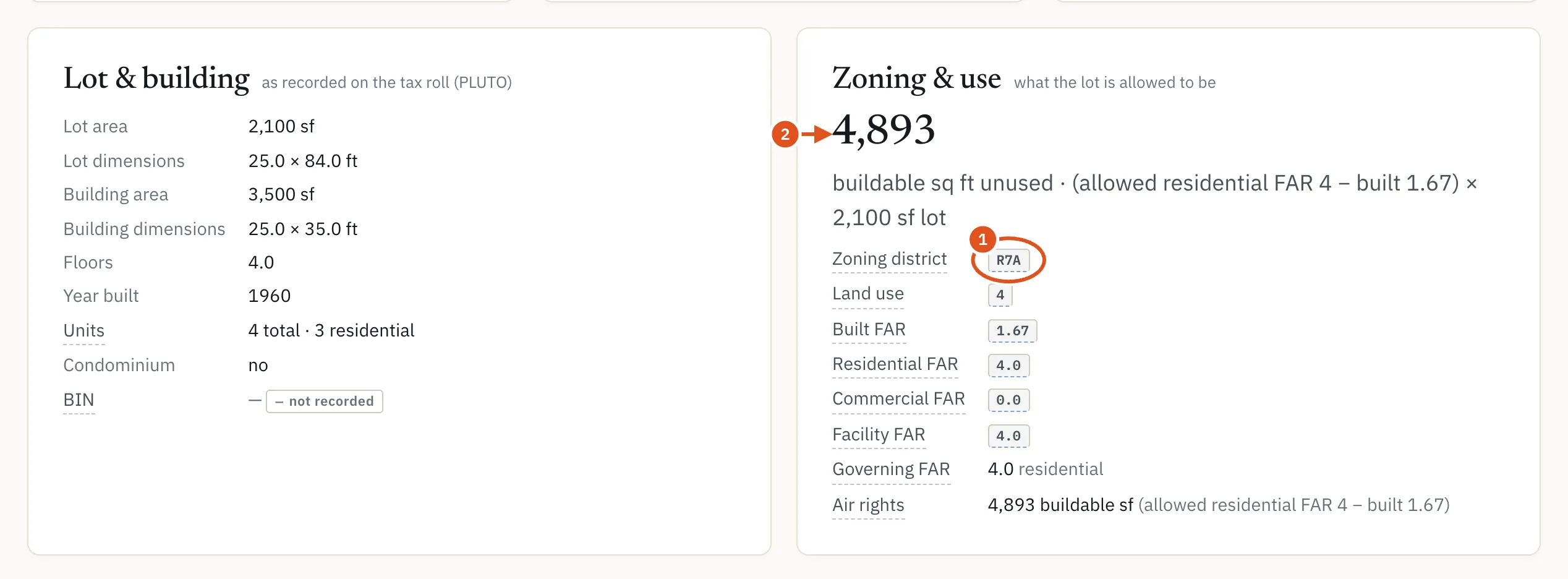
- Click for its meaning
- Room to build
3. Identify the owner
In the Owner card, compare the Roll owner (from the tax roll, which can lag a sale by a year or more) with Last sold and the Deed parties. When the latest deed names someone else, the Owner's portfolio card says so in a note beginning Holder per the latest recorded deed. To go further, follow Who owns this building?.
4. Sales and mortgages
The Sales history card lists every recorded sale. In the Records card, under Transactions & debt, Deeds & sales and Mortgages & liens open every recorded document from ACRIS, the City's register of deeds and mortgages: mortgages, satisfactions, assignments, agreements and liens. A document's id opens the scanned instrument on ACRIS, where the terms are. An amount is the face value written on the document when it was recorded, not what is owed today, and ACRIS does not cover Staten Island. See History and changes.
5. Permits and construction
Under Construction in the Records card: Permits, Job filings, Certificates of occupancy, After-hours work and others, from the Department of Buildings (DOB). Each opens the filings behind its count, so you can see what work was filed and when.
6. Violations and distress
The Compliance & distress signals card lists what is open or owed on the lot: overdue City charges, unpaid OATH tickets, open DOB and HPD complaints, active safety violations, facade, boiler and elevator filings. The Distress group in Records opens Violations, Housing court (litigations), Vacate orders and more; the blue badge counts what is still open. The score at the top of the page opens its full breakdown. See Distress and liens.
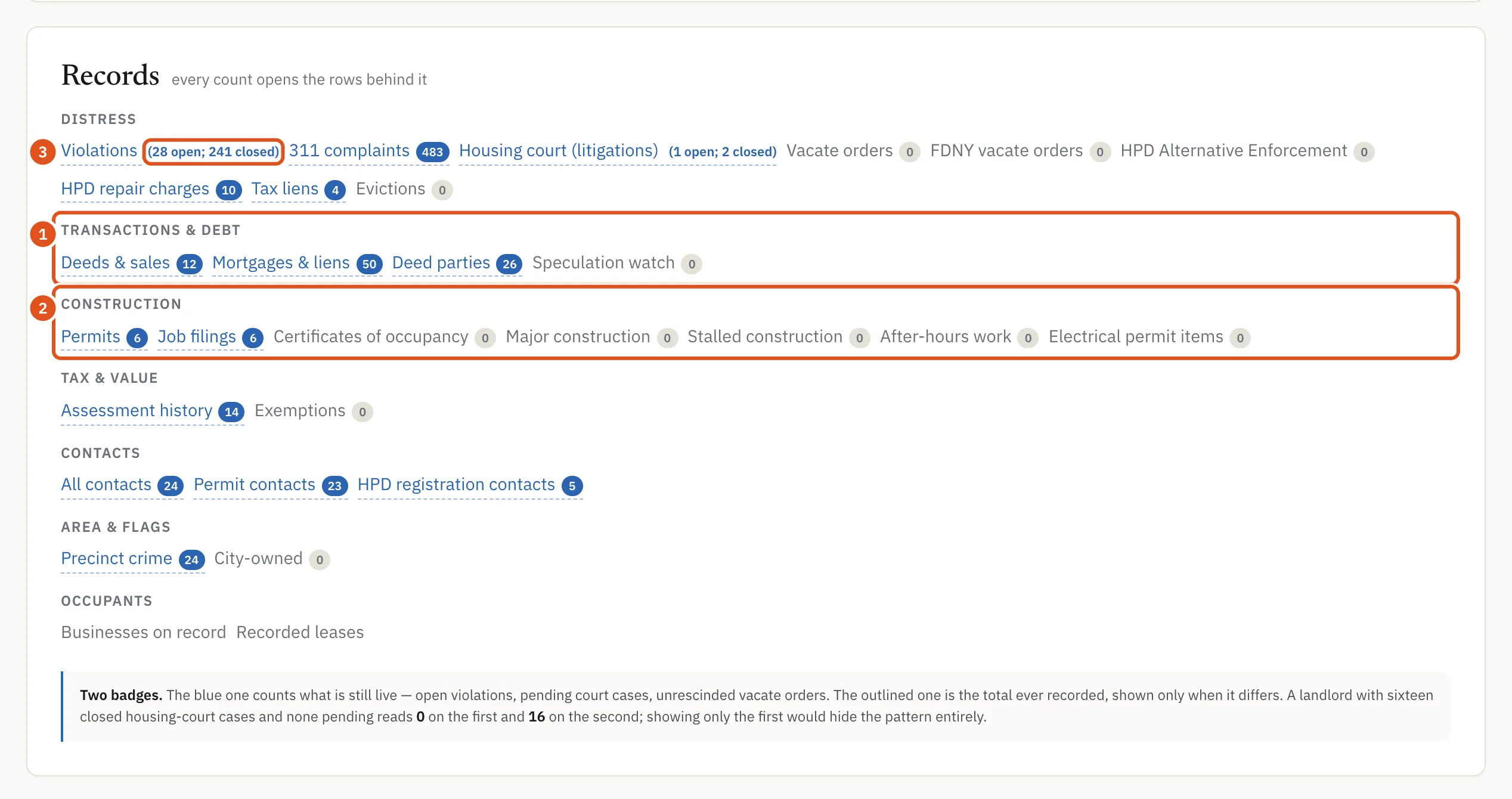
- Deeds and mortgages
- Permits and C of O
- Still open
7. Liens
Two kinds, kept apart on purpose. The Tax liens drawer, in the Distress group, lists the City's liens for unpaid property tax or water charges, which are a lien on the property itself. The Federal tax liens card lists IRS liens linked to the owners, which are filed against a taxpayer rather than the building. Other recorded liens, such as a condominium's lien for unpaid common charges, are among the documents under Mortgages & liens.
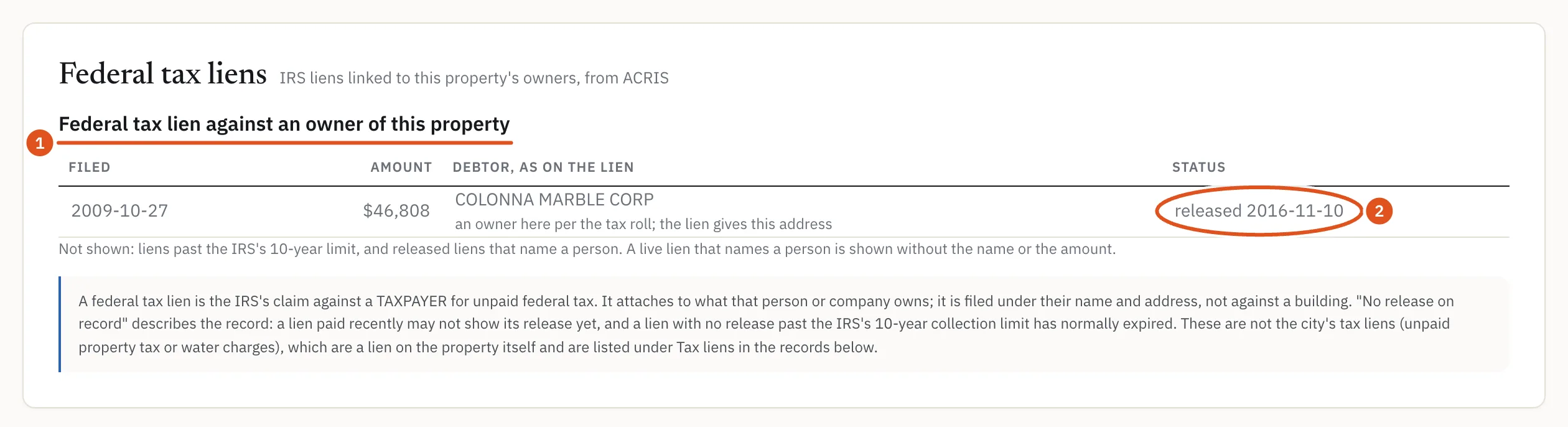
- Against the owner
- Released or not
8. The timeline, then the PDF
The Timeline puts the building's dated records (deeds, mortgages, permits, violations and more) on one axis, so you can see what happened in what order; click a type in its key to hide it. The Changes card shows what BlockLot has seen move at the building lately.
Finally, press Download PDF at the top right for a copy of the report to file or send. Downloading the PDF of a building whose report you have already opened in the current allowance period does not use another report. See The PDF report.
What to do next
- Get a quick read on value.
- Follow the owner to their other buildings.
- Watch the building for reported lease expiries.
- Ask for a correction when a record is wrong.