Find absentee owners in a ZIP code
A list of buildings in one ZIP code whose owners get their mail somewhere else, and how to work through it owner by owner.
"Which owners in 11211 don't live in their buildings?" An absentee owner (one whose mailing address is somewhere other than the building) is often the easiest to approach with an offer or a management pitch, and the hardest to reach by knocking on the door. This recipe builds that list for one ZIP code, narrows it, and takes you to the owners behind it.
Before you start
Anyone can see how many buildings match. To see the buildings, their owners and the records behind them, you need to be signed in on a plan; see plans. Opening a ZIP code's page counts against your monthly allowance of reports, and each distinct search counts once more. Re-sorting a search or paging through it does not.
1. Open the ZIP code's page
Type the five-digit ZIP code into the search box and press Search. Under ZIP codes, click it. If you are already on a building in that ZIP code, click the borough and ZIP code in bold under its address instead. More in ZIP code pages.
2. Run the Absentee owners search
Near the top of the ZIP page, the Search this ZIP card offers ready-made searches, each with a count of matching lots. Click Absentee owners.
BlockLot treats an owner as absent when the mailing address on the building's latest recorded deed is not the building's own address. To keep only owners whose address is outside New York State, open All filters, set Absentee owner under Motivation to out of state, and press Search.

- Start here
- How many lots match
- Narrow it further
3. Narrow the list
A whole ZIP code is usually too many buildings to work. Open All filters and add to the absentee filter:
- Last sale over N years ago (under Value) for long-term owners, who are likely to hold more equity;
- Owner type (under Motivation) to keep only LLC or Individual owners;
- Owner's portfolio ≥ N buildings to find professional operators, or leave it out to find small owners;
- Building class and Building sq ft ≥ (under Building) for the kind and size of building you work with.
Press Search. The heading above the results restates every filter in force, so you can always see what the list is. A filter that cannot apply in this place is greyed, with the reason. More in The deal search and Ready-made searches.
4. Read the list
Each row is one building: its address and ZIP code, Class, Owner, size, Unused sq ft, Last sale and Sale price, Years held, the last price per square foot beside the ZIP code's median, storefronts, the Distress band and other Signals on record. Next to the owner's name you see what kind of owner it is and, for an owner of several buildings, how many they hold.
Change the order with the Sort by links (for example Years held or Building sq ft), or click a column heading to sort the rows on screen. A map above the table shows where the buildings are. More and Earlier page through long lists.
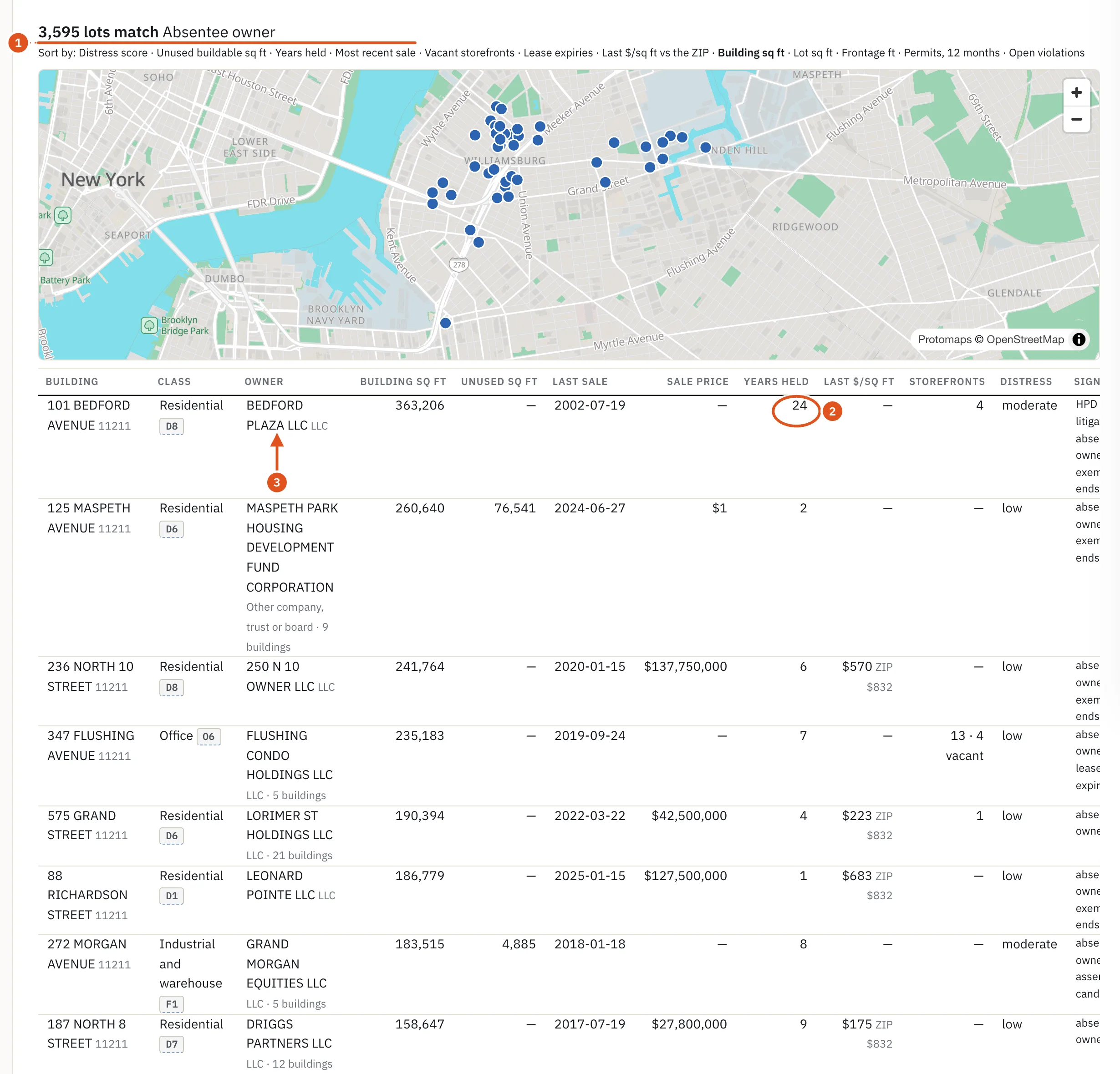
- What this list is
- How long they have owned it
- Open the owner
5. Open the owners
Click an owner's name. Where BlockLot has a page for the owner, usually a company, the name opens it: its registration, the addresses on the deeds it bought, and every building it holds now. Otherwise the name opens the building's page at its Owner's portfolio card. From there, Who owns this building? shows how to follow the company to the office and people behind it.
Click the address to open the building itself. Its Owner card shows the deed's mailing address and, on a plan that includes contacts, the Owner contact BlockLot found.
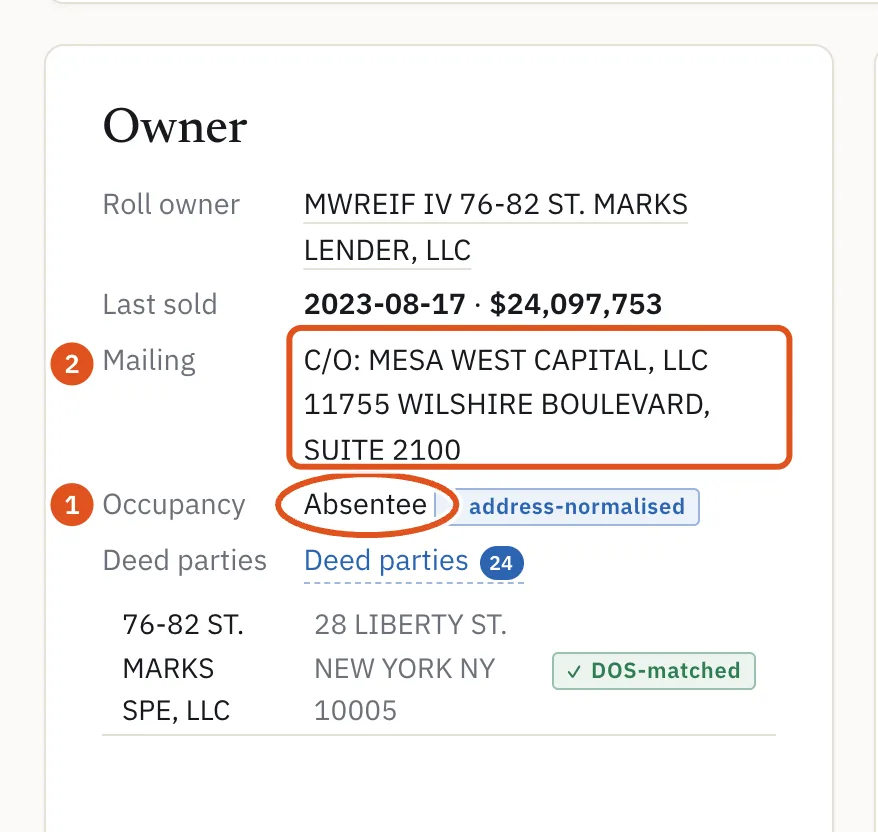
- Marked absent
- Where to write to
Keeping the list
The deal search has no download. To keep a building, open it and use Download PDF if your plan includes it (see The PDF report), or add a note in your own system with its address and BBL, the borough-block-lot number that identifies a tax lot. A search's address in your browser bar re-runs the same search later.
What to do next
- Follow one owner to everything else they hold.
- Get a quick read on value before you call.
- Run the same search across a borough from Prospecting.
- Look for distress signals on the same buildings.