What is this building worth?
A quick read on value from comparable sales, the building's own sales, the City's assessment and what nearby buildings sold for.
"Roughly what is this building worth, and is the owner sitting on more than they think?" BlockLot cannot appraise a building, but it can put the evidence side by side in a few minutes: what similar buildings nearby sold for, what this one last sold for, what the City assesses it at, and how the block and the ZIP code are trading.
Before you start
You need to be signed in. Opening a building's full report counts against your monthly allowance of reports; so does opening a ZIP code's page. Comparable sales and sales history come from ACRIS, the City's register of recorded deeds, which does not cover Staten Island, so those cards are thinner there.
1. Note the size
Open the building from the search box. In the Lot & building card, note the Building area and Units, and check the building class under the address at the top. Every price-per-square-foot and price-per-unit figure below only means something against these. See Location and lot.
2. Read the comparable sales
Scroll to the Comparable sales card. Its sub-heading says which sales it compared against: same block first, widening to the same census tract and a longer window only when the block has too few sales. For a condominium unit, the comparison is other units in the same building. When the comparison had to widen, a band above the figure says so.
The large figure is one of four things:
- an implied value, worked out from the comparable sales, often with the gain since the last purchase;
- the building's own last sale, when it sold at arm's length recently enough to be the market's answer;
- an estimated range, when two methods disagree too much for one honest number;
- No value estimated, when there were too few sales. The sales are still listed.
The tiles give the Median $/sq ft and Median $/unit of the comparables, and the table lists each sale, with a link to that building. More in Comparable sales.
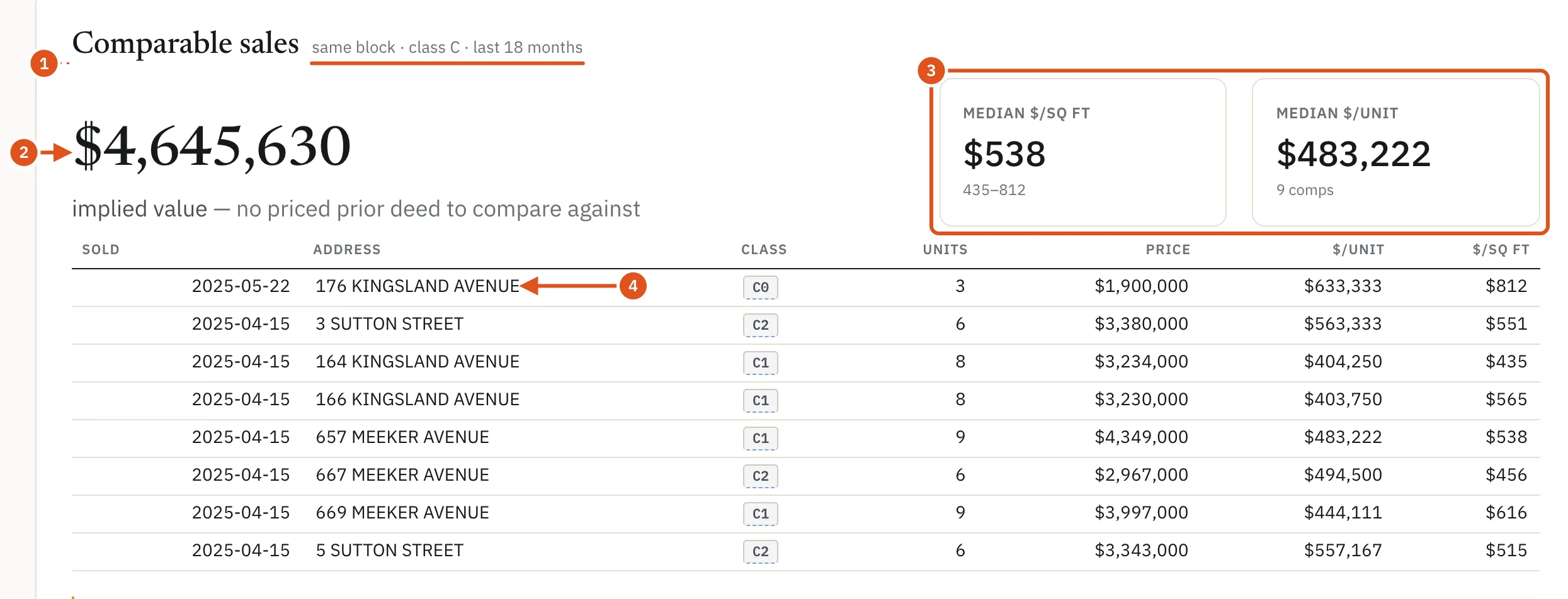
- Which sales were compared
- BlockLot's estimate
- Typical prices nearby
- Open a comparable
3. Check the building's own sales
The Sales history card lists every recorded sale of the building, newest first, with buyer and seller. A row marked DOF agrees is confirmed by the Department of Finance's own sales record. A greyed row, or one marked nominal, was not a market price: family transfers and LLC reshuffles often state no price. A chip such as 3 lots share this price warns that one price covered several lots. Click Show all sales for older ones. See History and changes.
4. Compare with the City's figures
The Value & tax card shows the Department of Finance's Market value and Assessed value, the Tax class and an estimated Annual property tax. Click the fiscal year beside the tax for earlier years, or Assessment history for the full record. DOF's market value is a basis for tax, not a sale price, and for rental buildings it usually sits well below what they trade for. Use it to see the trend, not the price. More in Value and tax.
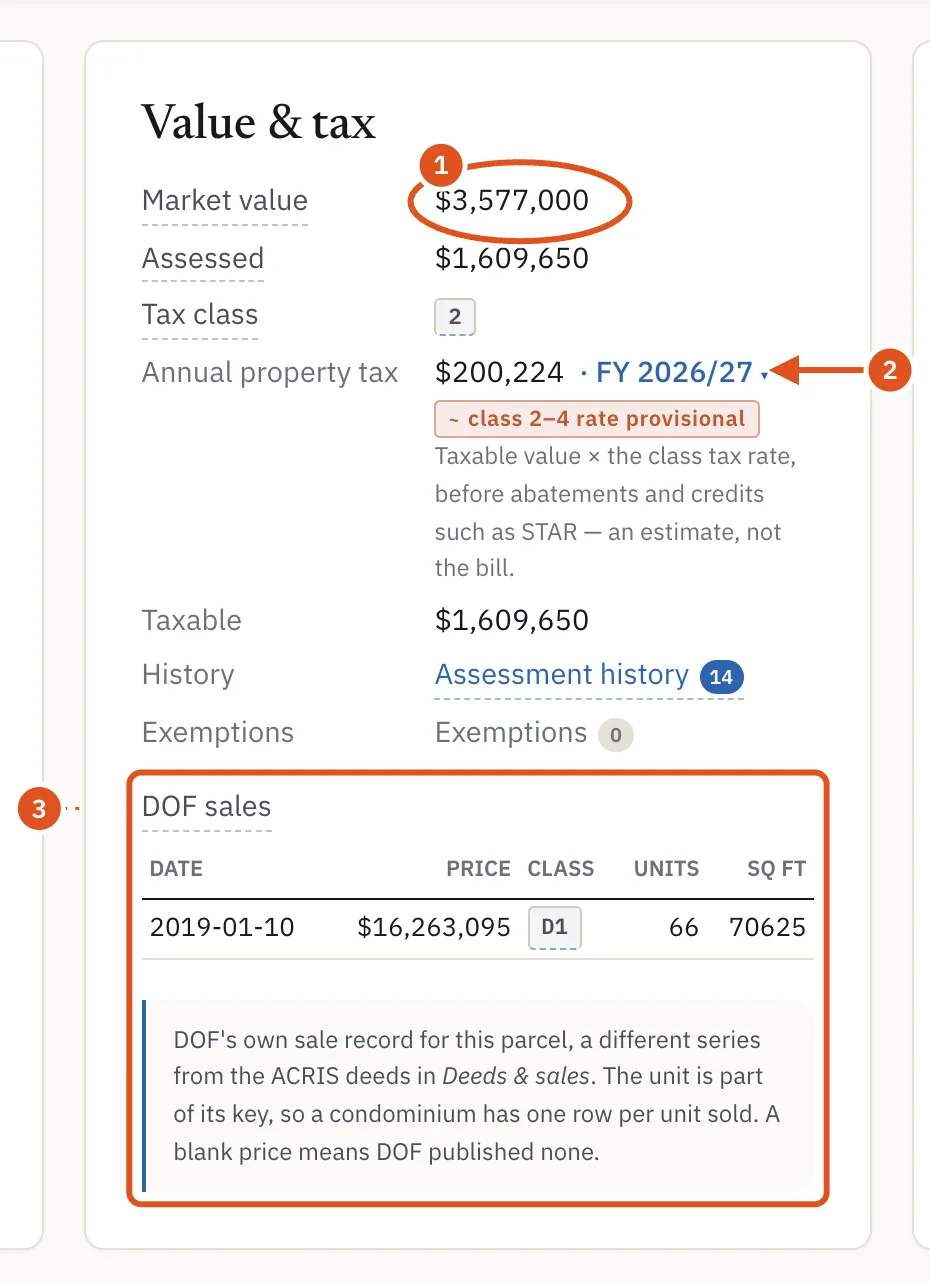
- DOF's figure, not a price
- Earlier years
- DOF's own sale record
5. Look at the block and the ZIP code
The On this block card gives the block's Sales, last 24 months and Median $/sq ft, last 24 months; click either number for the sales behind it, or Open the block page → for the full picture. See Block pages.
For a wider view, click the borough and ZIP code in bold under the address at the top of the property page. On the ZIP page, open Trends and mix, then Median $/sq ft by year (single-lot priced sales) to see which way prices have moved. See ZIP code pages.
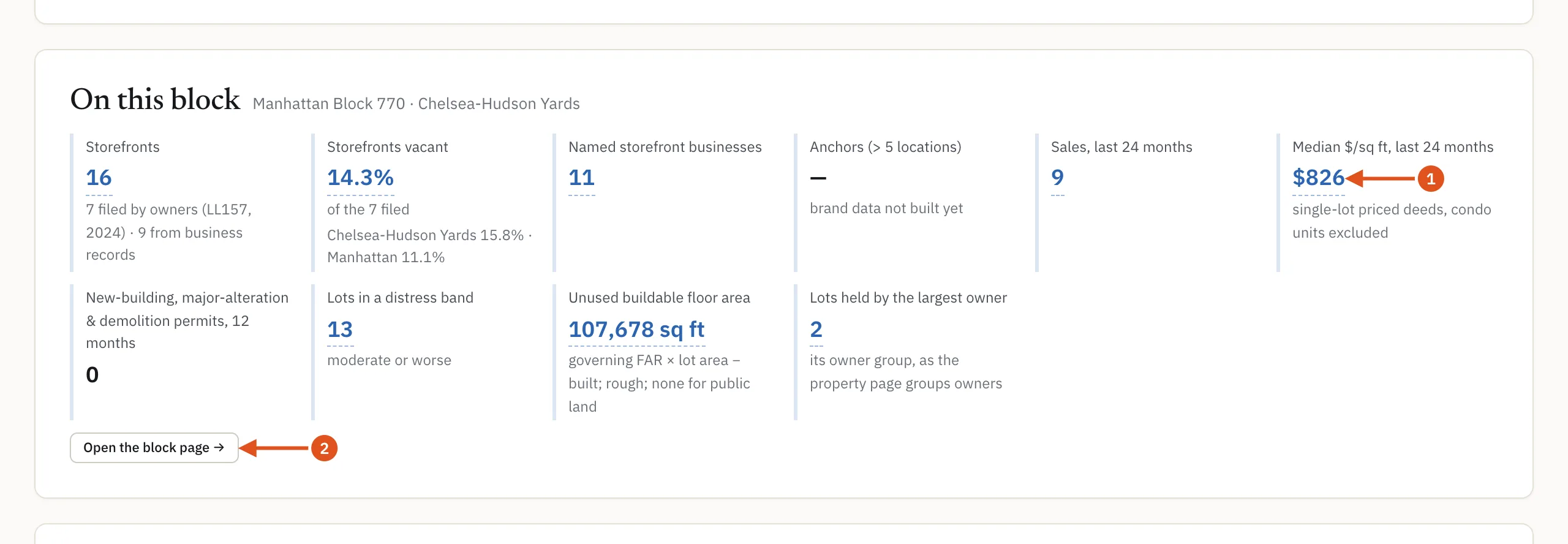
- The block's going rate
- Whole block
6. Check the upside
The Zoning & use card shows, when there is one, a figure of buildable sq ft unused: floor area the zoning allows on the lot but nobody has built. That is often worth more to a buyer than the building's current rent roll. See Location and lot.
What to do next
- Find out who owns the building and what else they hold.
- Run a due-diligence pass before you make an offer.
- Save the report as a PDF to send to a client.
- Learn how to read the numbers BlockLot shows.