Find storefronts and leases coming up for renewal
Find vacant storefronts and reported lease expiries in an area, read a building's storefront record, and get an e-mail as a date gets close.
"Which storefronts on this strip are empty, and whose lease is up next year?" A storefront that has sat vacant, or a lease that ends soon, is the moment a landlord needs a tenant and a tenant needs a space. This recipe finds both in an area, checks the record on each building, and sets BlockLot to e-mail you as the dates come up.
The dates come from two public filings. Under Local Law 157, owners register their ground- and second-floor storefronts with the Department of Finance (DOF) every year, saying whether each was vacant and when its lease ends. Office tenants in the City's commercial rent abatement programs report their lease end dates to DOF too. These are dates as reported, not promises: leases are renewed, extended and ended early without any filing.
Before you start
Anyone can see the counts. To see the buildings and leases you need to be signed in on a plan; see plans. Each distinct search counts once against your monthly allowance of reports. E-mail alerts need a plan that includes watches.
1. Search the area
Open the Prospecting menu at the top of any page and choose Commercial search. In Where, type a borough, a ZIP code, a neighborhood, a block, an address or a stretch of street (for example a street name "from" one cross street "to" another), and press Search. If the place could mean more than one thing, BlockLot asks Which one?. More in Commercial search.
2. Find the vacant storefronts
The Buildings tab lists buildings with commercial space: the Storefronts the owner filed, how many were Vacant and in which year, the Businesses on record, Anchors (brands with more than five locations in BlockLot's records), the Next lease expiry, Unused sq ft and the last sale. Open More filters and set Vacant storefronts ≥ to 1 to keep only buildings with an empty storefront, or tick A lease expiring within 12 months.
Vacancy is "vacant per the owner's filing" for that year, not a listing, and BlockLot shows no asking rents.
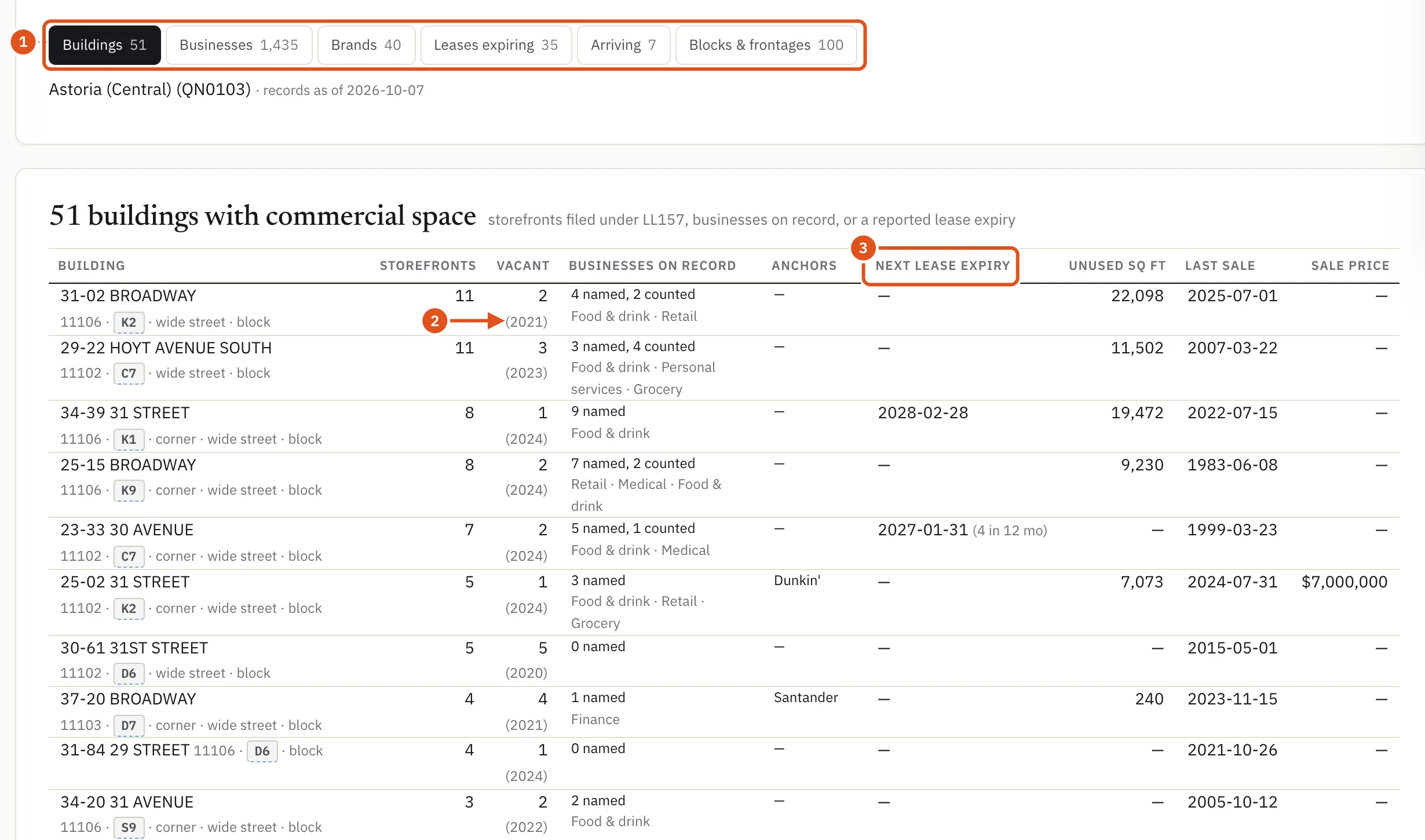
- Six ways to look
- Vacant, per the filing
- When a lease ends
3. List the leases coming up
Click the Leases expiring tab. It lists every reported expiry in the area, with the Building, the Lease (a storefront or an office lease, with its unit, and the tenant where the record names one), Our business records for that lot and the Source. Narrow the dates with Expiry from and Expiry to under More filters. See Lease watch.
4. Read one building's record
Click a building. Three cards on its page tell the commercial story:
- Businesses on record names businesses licensed, registered or inspected at the address, grouped into Storefronts and Offices & other, with the dates each was on record. A record naming a business is not proof it is there now.
- Storefront history gives each reporting year's Storefronts, Vacant and vacancy Rate, with a small trend line.
- Lease expirations lists the Storefront leases by Reported expiry, each with whether it was filed as occupied or vacant and its unit, and the Office leases with tenant, Reported lease end and Leased area.
More in Businesses and leases.
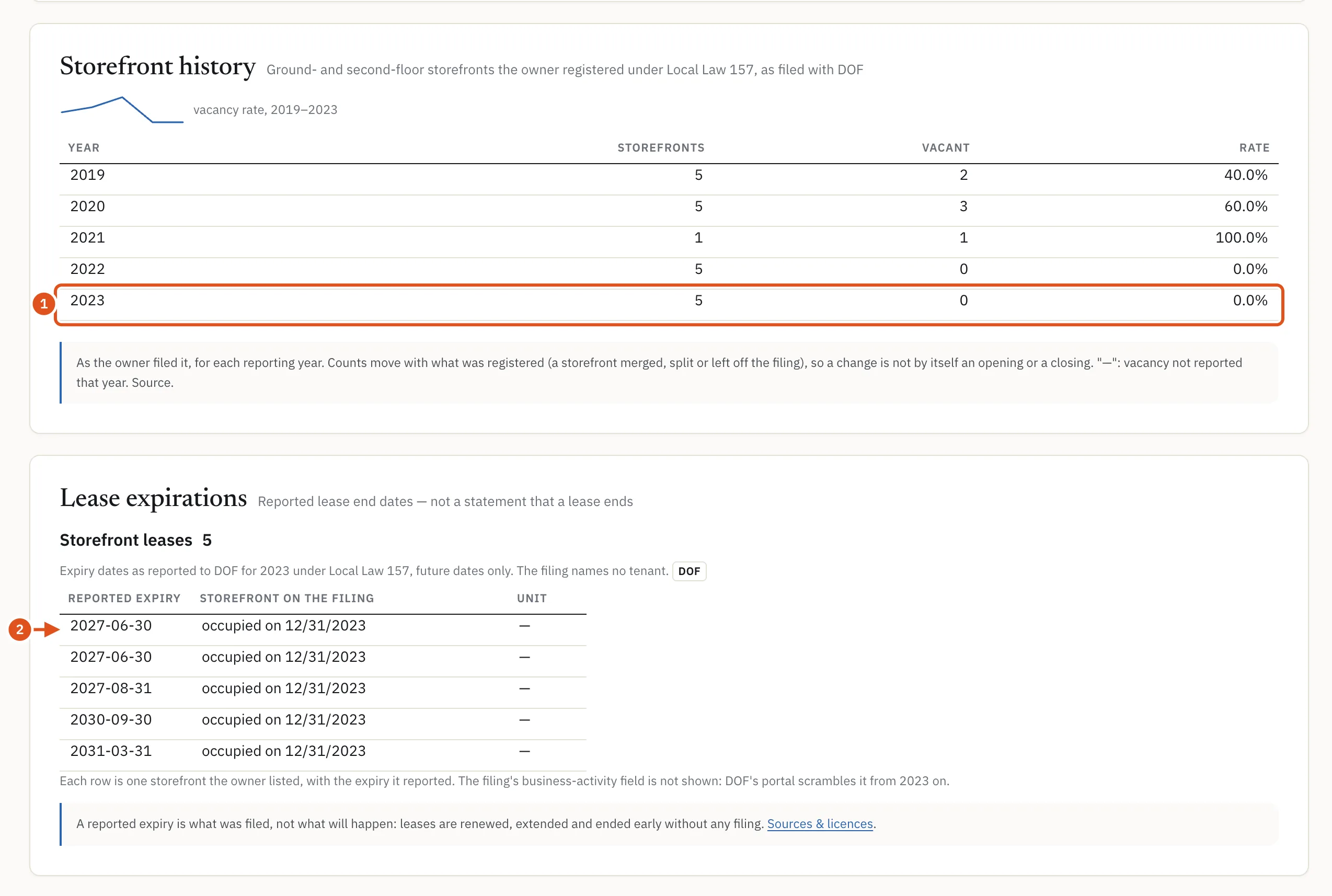
- Latest vacancy
- Next lease to end
5. Get an e-mail before a date arrives
There are two ways to watch. A building uses one of your plan's building watches, a list one of its area watches:
- On a building's page, press Watch at the top right and keep Leases & storefronts ticked (it is in Everything, the default). The button then reads Watching ✓.
- On the Leases expiring tab, press Alert me on this list to watch the whole list rather than one building.
BlockLot then sends one e-mail on a morning when a reported expiry in something you watch crosses 12, 6 or 3 months away, and never twice for the same mark. Click Watching ✓ to see everything you watch on the Watching page, where Remove stops a watch. When all your watches are in use the button reads Watches full. More in Watching buildings.
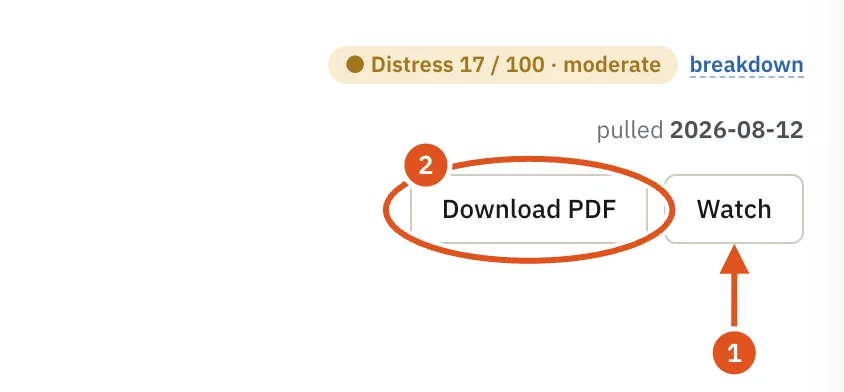
- Start watching
- Keep a copy
What to do next
- Find out who owns the building before you call.
- Search the same area for buildings with an expiring lease and other conditions in the deal search.
- See the whole block's storefronts on the block page.
- Look for distress signals on the same buildings.