Prospecting tools
The Prospecting menu gathers BlockLot's list tools: searches that find buildings in a situation worth acting on, across the city.
A property page tells you everything about one building. Prospecting goes the other way: you describe a situation, such as an owner who has held for decades, a lien on record or a storefront standing empty, and BlockLot lists the buildings that match. Every list is built from the public record, and every row opens the building's full page.
Getting there
Prospecting sits in the header of every page, whether you are signed in or not. On a computer it opens a menu with one line per tool and a short note on what each finds; the last line, All prospecting tools →, opens the Prospecting page. On a phone the header shows a plain Prospecting link that goes straight to that page.
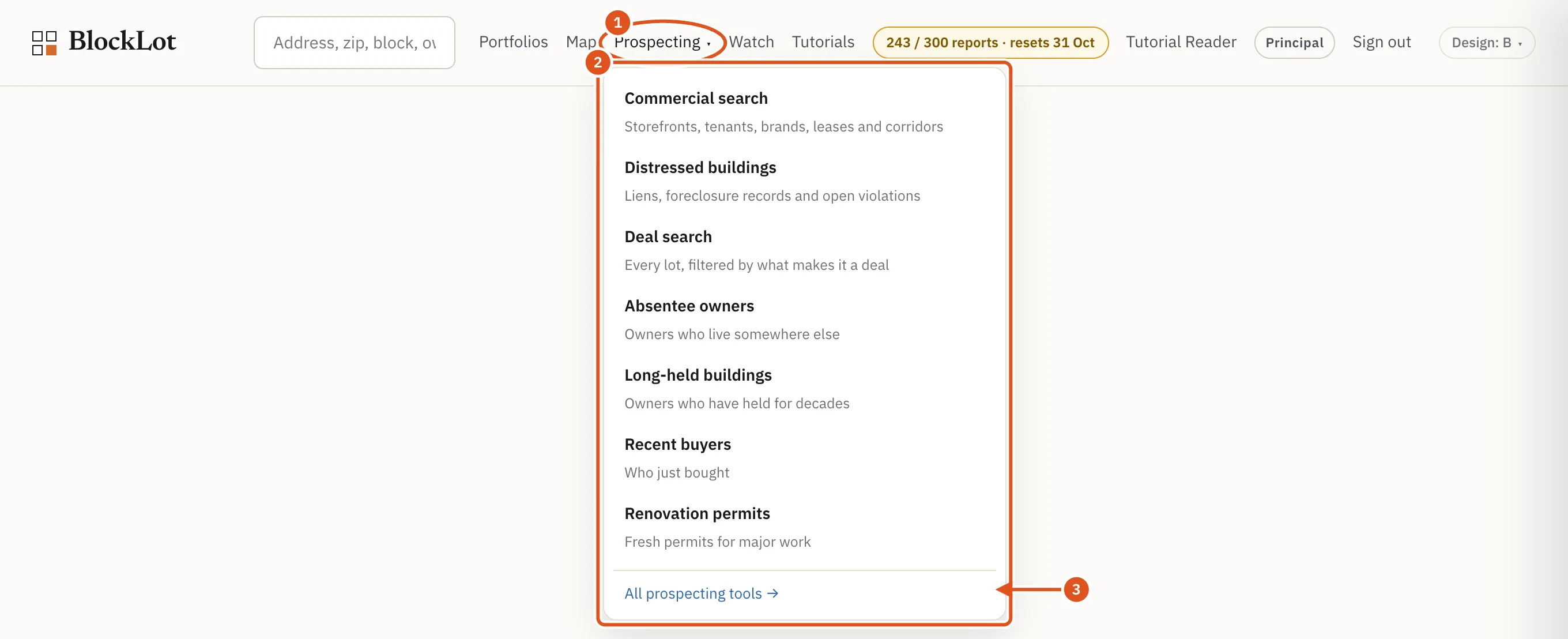
- Open the menu
- One line per tool
- The Prospecting page
The Prospecting page, headed Find buildings in a situation worth acting on, shows the same tools as tiles, each with a paragraph describing what it lists. Click a tile to open the tool.
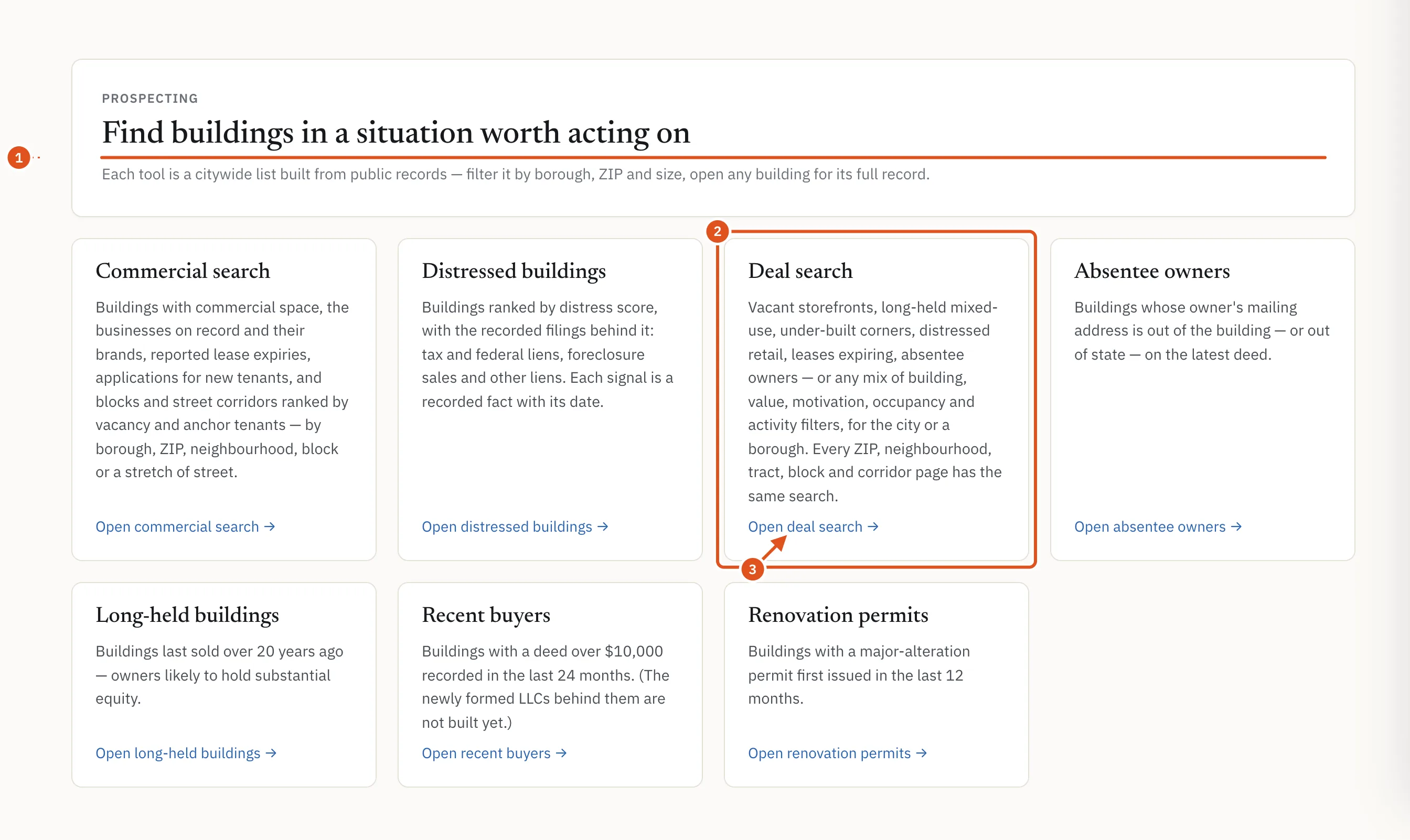
- What Prospecting is for
- The search behind most tools
- Opens the tool
The tools
- Commercial search finds storefronts, offices, the businesses on record and their brands, reported lease expiries and applications for new businesses, and ranks blocks and street corridors, for the whole city, a borough, ZIP code, neighborhood, block or stretch of street. See Commercial search.
- Distressed buildings lists buildings by BlockLot's distress score and the recorded filings behind it, such as tax and federal liens, foreclosure sales and other recorded charges. See Distressed buildings.
- Deal search filters every tax lot in the city or a borough by building, value, motivation, occupancy and activity, and the same search sits on every ZIP, neighborhood, census tract, block and corridor page. See Deal search.
- Absentee owners, Long-held buildings, Recent buyers and Renovation permits open the deal search with one of its ready-made searches already applied. Ready-made deal searches explains exactly what each one finds.
What you see depends on your account
The Prospecting page itself only describes the tools, so anyone can read it. Each tool's own page decides what you see:
- Without an account, you see the counts: how many buildings match a search, and how they break down by signal, borough or neighborhood. You do not see which buildings they are.
- With a plan, you see each building, link through to its page and, where the tool shows one, its owner.
- Opening a list counts against your plan's monthly allowance of reports. One search (one place plus one set of filters) is one report. Sorting, paging through the results and reloading the same search during the same period do not count again. Your account page shows how much of the allowance you have used.
Accounts and plans explains what each kind of account sees, and /pricing lists the plans.
Tips
- Start broad and narrow down. Run a search for a borough, look at the counts, then add a filter or move to a ZIP code.
- Every building in a list links to its property page. Use your browser's back button to return to the list with your filters as you left them.
- To go deeper on a single building you found, see Checking a building before you act.