Accounts and plans
What you see without an account, with a free account and with a plan — and how to sign up, sign in and reset a password.
How much of a building's record you see depends on whether you are signed in, and on your plan. This article explains the three levels, how to sign up and sign in, and the usage meter in the header.
What each level shows
Without signing in. Anyone can search an address, ZIP code or block from the home page and open a building's public page: the tax-lot facts the City publishes, such as building class, size, units, floors, zoning and assessed value, with a map. The deeper sections are there with their values hidden. Open a great many buildings in a short time and BlockLot asks you to pause.
A free account shows the same public record as browsing without one, with the owner layer hidden. It is the account you buy a plan on.
A plan. A plan opens the full report on every building: distress signals, comparable sales, sales and permits, and the drill-downs behind every count. The larger plans add owner names and contacts, the owner's other buildings and the PDF report. Plans differ in:
- how many reports you can open each month;
- whether owner names and contacts are included;
- whether the owner's portfolio is included, and how much of it;
- whether you can download the PDF report;
- how many devices can be signed in at once.
The Plans page lists every plan. BlockLot also grants a complimentary plan, shown as Friends & Family, by invitation. For several people sharing one allowance, see Team accounts.
Creating an account
- Click Create an account in the header.
- Enter your E-mail and Your name. Company, Phone and What describes you best? are optional.
- Tick the box to agree to the Terms of Service and acknowledge the Privacy Policy, then click Create account.
- BlockLot shows Check your inbox and e-mails you a link to create your password. The link works once and expires after 48 hours. Nothing arrived? Check your spam folder, then sign up again with the same address to get a fresh link.
- Open the link. On Choose your password, type a password twice. You may also say in a few words what you will use BlockLot for. Tick the Terms box again and click Set password.
- On Password set, click Sign in. A new account lands on a welcome page that says what your account shows and offers the plans.
A password needs at least 12 characters and cannot be a common one. Three or four unrelated words is the easiest way there.
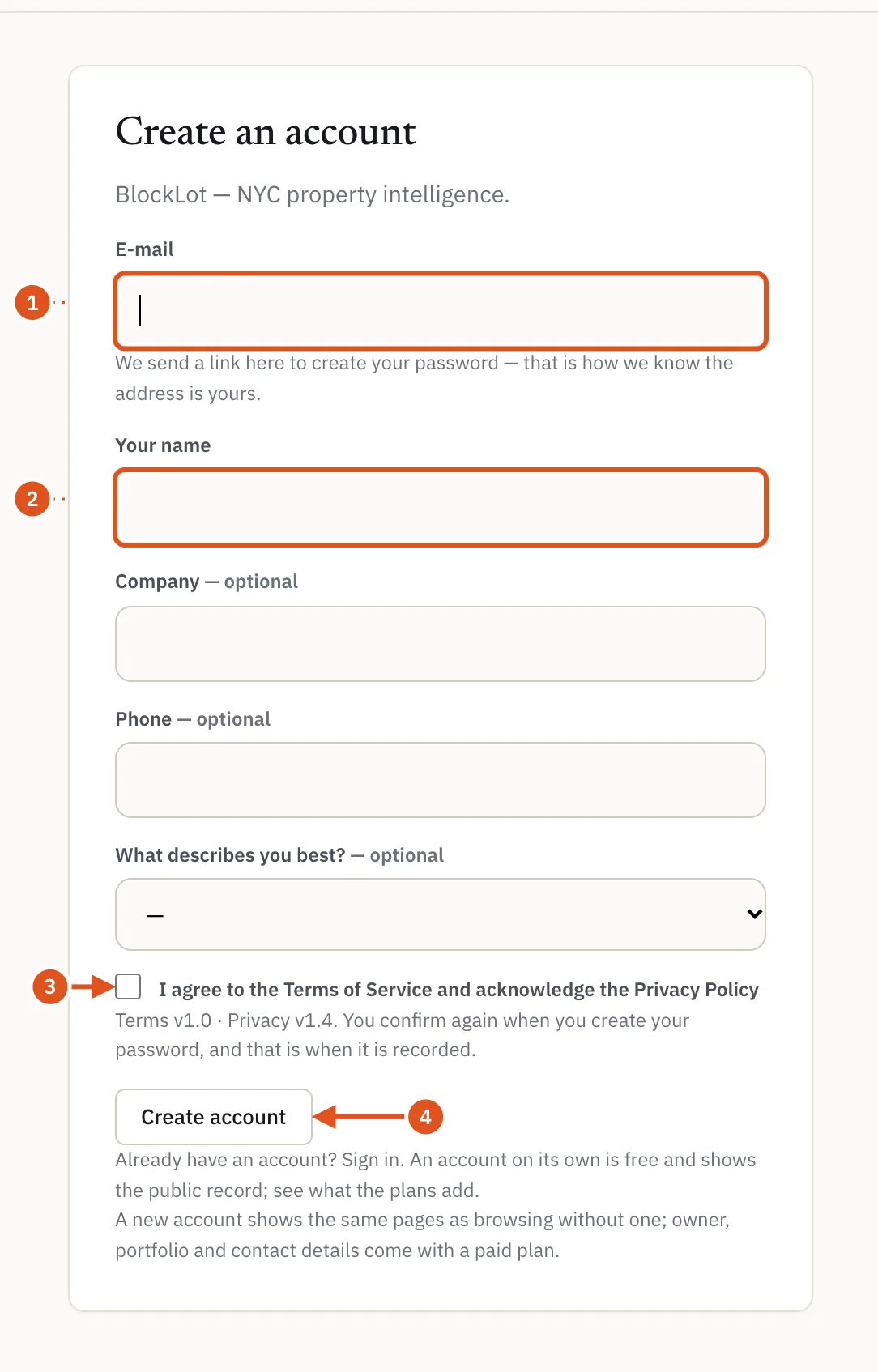
- Required: your e-mail
- Required: your name
- Agree to the Terms
- Sends the password link
If you pick a plan on the Plans page before you have an account, BlockLot carries the choice through sign-up to a Continue to checkout box. Nothing is charged until you confirm.
Signing in and out
Click Sign in, enter your E-mail and Password, and click Sign in. After several wrong passwords, BlockLot asks you to wait before trying again. Nothing is locked, and the wait clears by itself.
Each plan allows a set number of devices at once. Signing in on one more signs out the device that signed in longest ago, and your account page tells you so. To sign out, click Sign out at the right of the header.
Forgotten password
- On the sign-in page, click Forgot password?
- Enter the e-mail address you sign in with and click Send the reset link.
- Open the link within 30 minutes. If you ask again, the newest link replaces the old one.
- On Set a new password, type the new password twice and click Set password, then sign in.
A new password signs out every other device.
The Plans page
The Plans page shows one card per plan: who it is for, its price, what it adds over the plan below it, and a checklist of what it includes. If yearly billing is offered, a Monthly and Yearly switch changes the prices shown. Below the cards are a comparison table and answers to common questions.
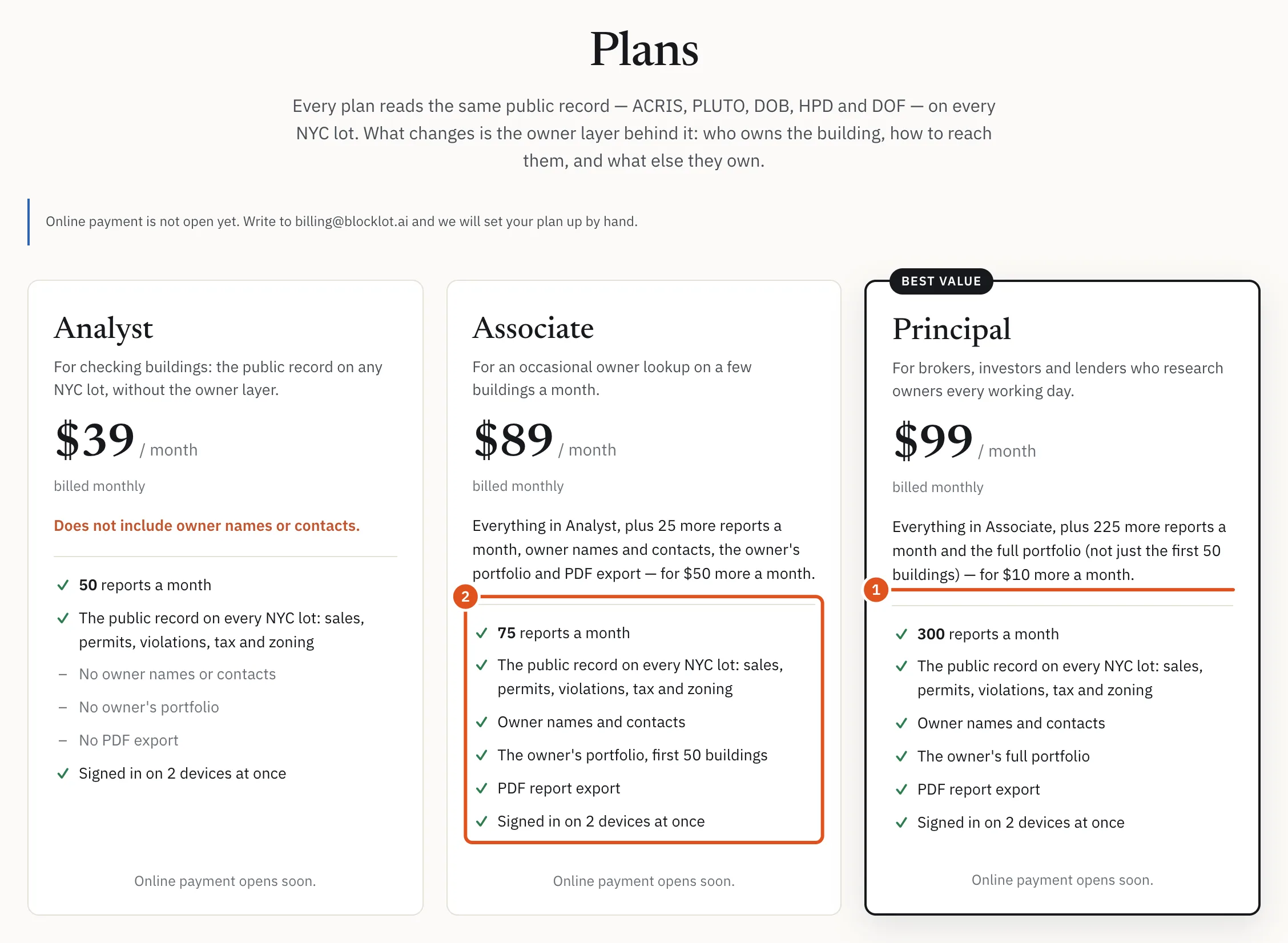
- What this plan adds
- What is included
A hidden section of a building page may carry a line such as Owner names are hidden on the free view. Its link opens the Plans page with the right plan picked out.
The usage meter
On a plan with a monthly allowance, a meter in the header shows the reports you have opened this period and when the count resets, for example "12 / 50 reports · resets 3 Nov". It turns amber near your allowance and red at it. Click it for the breakdown on your account page.
A report is one distinct page: a building, an owner or company, a business, a block or ZIP page, or one of the prospecting lists. Opening the same page again in the same period is free, and so are the drill-downs and the PDF of a page you have already opened. Searching does not use your monthly allowance.

- Reports used this period
- Opens your billing page
At your allowance, pages still open with their details hidden, under a banner saying Monthly allowance reached, with See your usage and More reports buttons. Hourly and daily limits, which stop bulk copying, say Hourly limit reached or Daily limit reached the same way.
A free account has no meter. Its pages carry the banner Your free account shows the public record, with See plans. Once per browser session, a box listing what a plan adds appears on a search or a building page; close it with the ×.