Team accounts
For company managers — your team's shared reports, seats and members, how to invite people, set limits and suspend access.
A company account lets several people at one firm use BlockLot on one plan, with one shared monthly allowance of reports and one invoice. Each person signs in with their own account. The company's manager runs the team from the Team page: who is on it, how much each person has used, and who can sign in.
Company accounts are set up by BlockLot. To open one, or to change your company's reports or seats, write to billing@blocklot.ai or support@blocklot.ai.
Getting there
If you are a manager of your company's account, a Team link appears in the header when you are signed in. Members who are not managers do not see it.
The company card
The first card shows:
- Company reports this period — reports opened by everyone on the team, against the company's allowance.
- Seats — how many people are on the team, against how many the account includes.
- Resets — when the shared count starts again, in New York time.
A report is one distinct building or owner page. When one member opens a building, it is free for everyone else in the company for the rest of the period, drill-downs and PDF included.
If your company is billed by invoice, a Billing card shows the plan's amount, the payment terms and the date of the next invoice, with any Unpaid invoices listed. Click an unpaid invoice's view and pay link to pay it by bank transfer or card. Invoices are also e-mailed to your company's billing contact.

- Shared reports used
- People on the team
Members
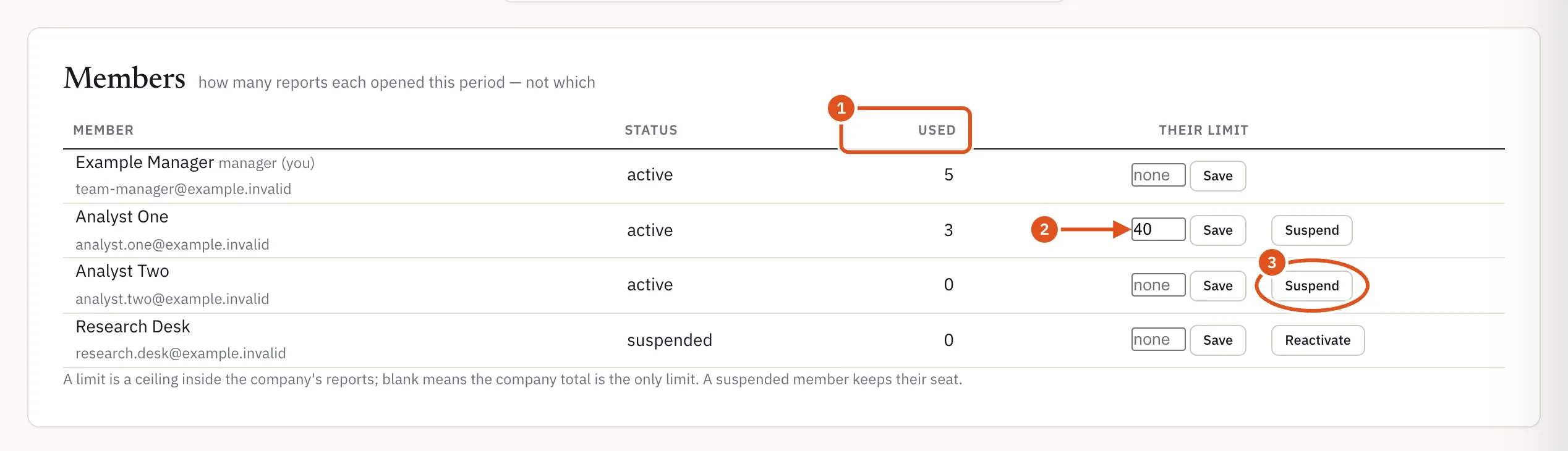
The Members table lists everyone on the team, with each person's name and e-mail, manager beside managers, and invitation not yet accepted for someone who has not yet set a password. For each member you see:
- Status — active or suspended.
- Used — how many reports they have opened this period. BlockLot shows the number only, never which buildings or when.
- Their limit — an optional ceiling on that person's reports inside the company's allowance.
To set or change a limit, type a number in the member's Their limit box and click Save. Leave it blank for no personal limit, so that the company total is the only limit. A member who reaches their limit sees a note saying so, and that their company manager can raise it.
- Reports opened this period
- Set a personal limit
- Remove access
Inviting a member
- Under Invite a member, enter the person's E-mail and, if you like, their Name and a Monthly limit.
- Click Send invitation.
- BlockLot e-mails them a link. They choose their own password and accept BlockLot's terms themselves when they open it. Until then the Members table shows invitation not yet accepted.
The invitation uses one of your seats. When all seats are taken, the page says so instead of showing the form: ask BlockLot for more. If an address cannot be invited from the page, for example because the person already has their own BlockLot account, ask BlockLot to add that account to your company.
Suspending and reactivating
Click Suspend on a member's row to remove their access at once. They are signed out everywhere and keep their seat, so you can bring them back later with Reactivate.
- A manager cannot be suspended from this page — neither yourself nor another manager.
- You can reactivate only a member your company suspended. If BlockLot suspended someone, only BlockLot can reactivate them.
If an invoice is unpaid
If the company's account is suspended because an invoice is unpaid, the Team page says so at the top and becomes read-only. Your team can still sign in and sees BlockLot's free view until the invoice is paid. Pay it from the Billing card, and access returns automatically once the payment is confirmed.
What members see
Members use BlockLot like anyone else, but their plan comes from the company: their billing page has nothing to buy, promo codes do not apply to them, and their header meter shows the company's reports, followed by their own count when they have a personal limit. If the company's allowance runs out, pages open with their details hidden, and the note tells them that their company manager or BlockLot can add more.